Whiteboard
Whiteboard templates
Start a whiteboard from one of the built-in templates, or from one your workspace saved.
A new whiteboard starts empty or from a template. Skrüm has 8 built-in templates, and a workspace can save its own boards as templates. Anyone who may create a whiteboard may use any of them.
The built-in templates
| Template | What it gives you |
|---|---|
| Blank | An empty canvas. |
| Brainstorm | A question, a space for ideas and a place for the best ones. |
| Flowchart | A starter flow with steps and a decision. |
| User story map | Activities, steps and stories laid out in rows. |
| Impact map | From the goal to the actors, impacts and deliverables. |
| SWOT | Strengths, weaknesses, opportunities and threats. |
| Lean canvas | A one-page business model in nine blocks. |
| 2×2 matrix | Sort ideas by impact and effort. |
Start a board from a template
A template is chosen when the board is created. It cannot be applied to a board that already exists.
- On the team’s page, select New session, then Whiteboard.
- Under Template, select a template. Blank is selected when the dialog opens.
- Type a Name and select Create & open.
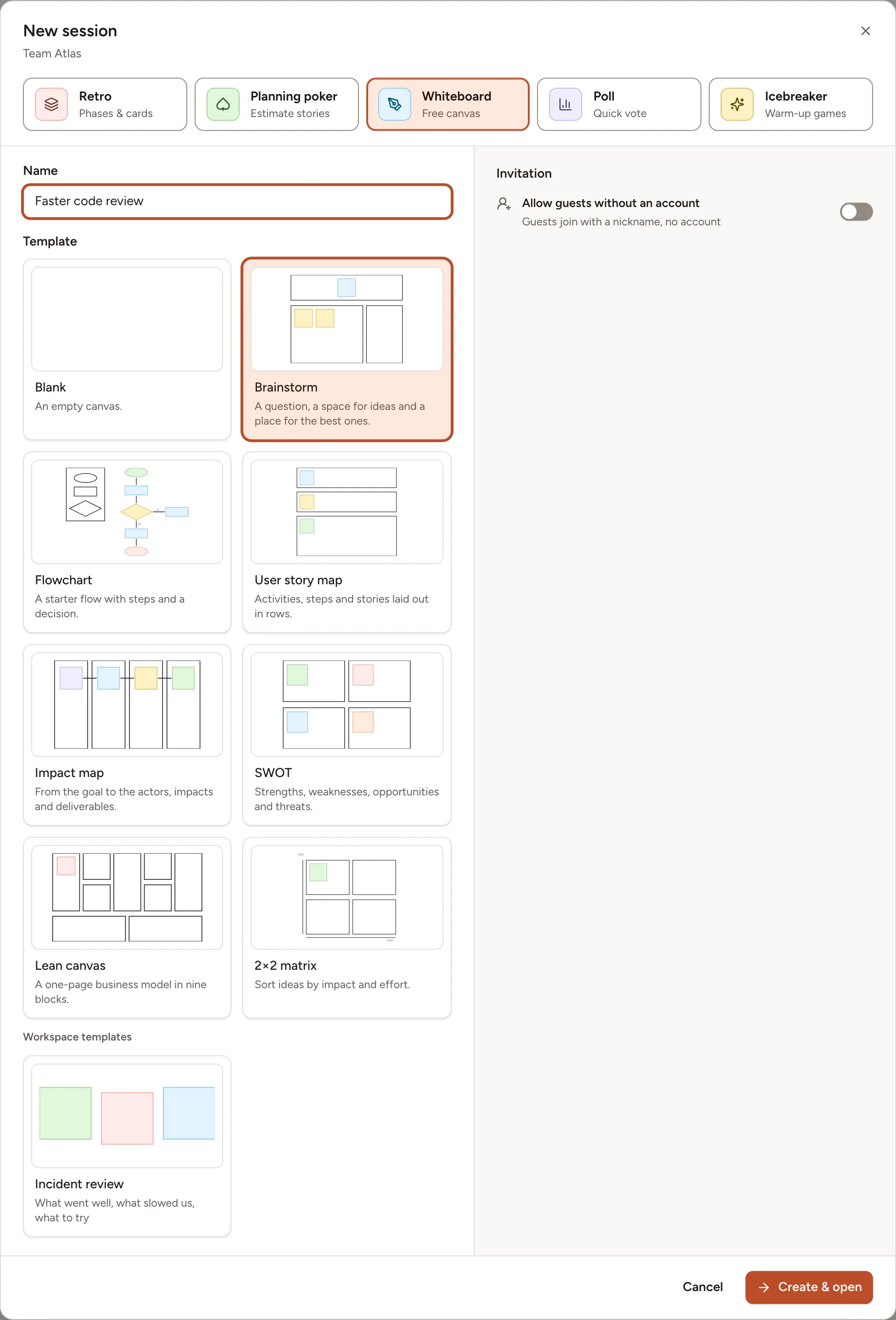
The labels of a built-in template are written in your language when the board is created. Its frames and the other parts of its structure are locked, so they stay in place while people work; the facilitator can unlock them. Its sample notes are ordinary notes: edit them, move them or delete them.
Save a board as a workspace template
Anyone on the board who is neither a guest nor an observer can save it as a template.
- Open the board menu (the Board menu button, marked
…) and select Save as template. - Type a Name, of up to 80 characters, and if you want a Description, of up to 300.
- Select Save.
The template holds a copy of everything on the board, images included. It appears under Workspace templates in the New session dialog of every team of the workspace. Changing or deleting the board afterwards does not change the template.
A workspace holds up to 50 whiteboard templates, and two of them cannot have the same name.
Rename or delete a workspace template
The person who saved a template and the owners and admins of the workspace can change it, in either of two places:
- On the team’s Sessions page, select Whiteboard, then Whiteboard templates. Each template you may change has Edit and Delete.
- On the workspace’s Templates page, select the Whiteboard tab. A template’s card has Use, which starts a new whiteboard from it, and the menu of the card has Rename and Delete.
Deleting a template does not change the boards that were created from it.