Team insights
Activity and data
See what happened in the team, and what data it holds.
The activity page is the journal of a team: who started, closed or completed what, and when. The Data & export page of the team settings gathers the ways to get the team’s data out.
Read the activity of a team
Every member of the team can read the activity, observers included, and so can the owners and admins of the workspace.
- Select Activity in the sidebar. On the home page of the team, the Recent activity card shows the last five lines, and All activity leads to the same page.
- Read the lines. They are grouped by day, newest first, under Today, Yesterday, then the date. Each line names the person, what they did, and the time of day.
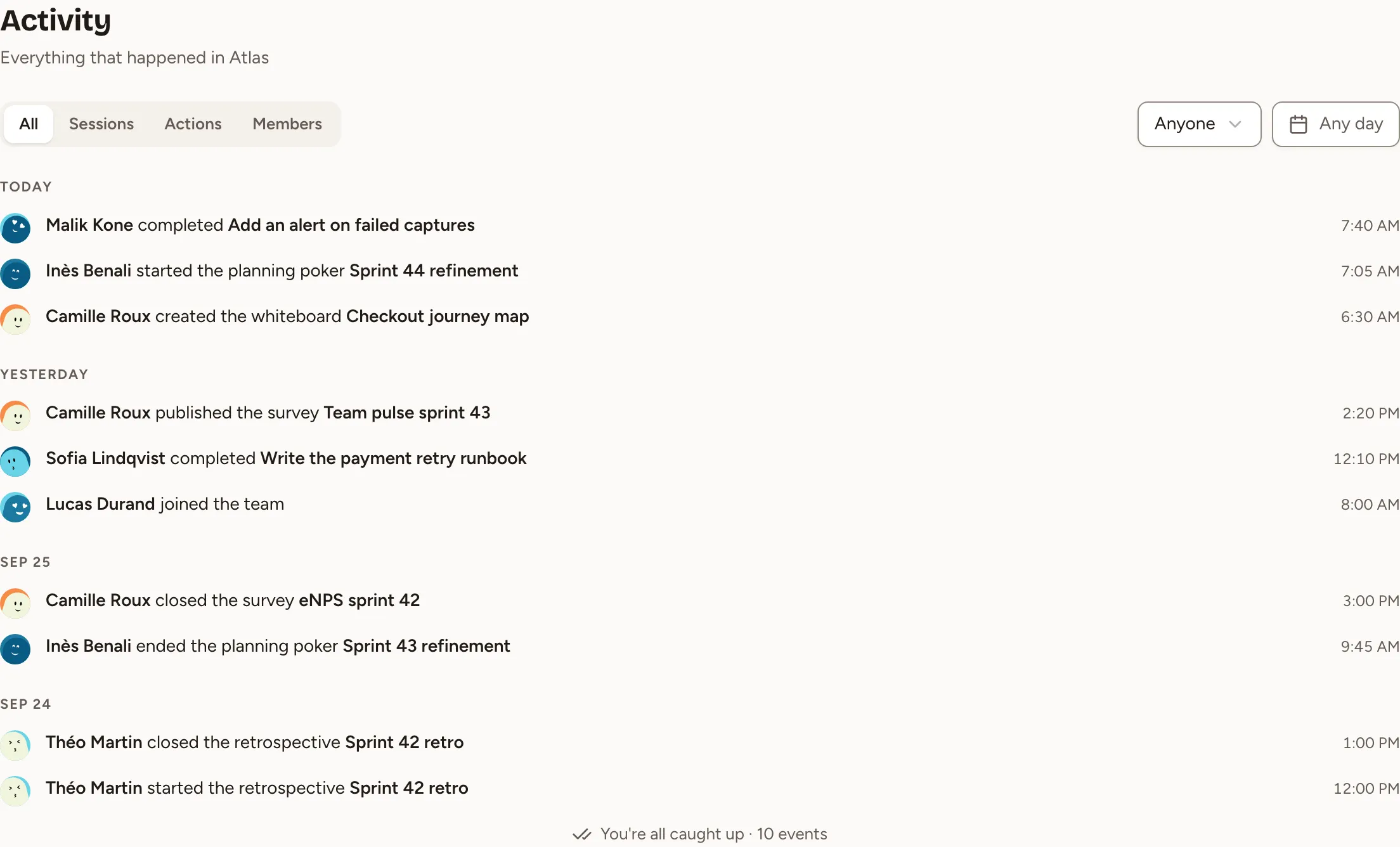
The page loads 30 lines at a time. Load more brings the next ones; at the end it reads You’re all caught up with the number of events.
What is recorded
Skrüm writes a line for these nine events and for nothing else.
| When | The line reads |
|---|---|
| A retrospective is created | Name started the retrospective title |
| A retro is completed | Name closed the retrospective title |
| A planning poker game is created | Name started the planning poker title |
| A planning poker game is ended | Name ended the planning poker title |
| A whiteboard is created | Name created the whiteboard title |
| A survey is published | Name published the survey title |
| A survey is closed | Name closed the survey title |
| An action item is completed | Name completed title |
| Someone joins the team | Name joined the team |
- The health check of a retro is part of its retro: publishing or closing it writes no line.
- A person joins when a manager adds them, when they use an invite link, or when their request for access is accepted.
- A line about a guest carries the name they joined the session with. When an action item is completed from a connected tracker, the line names the tracker.
- The lines of a deleted account read Former member.
- The title in a line opens the session while it still exists. The title of an action item opens the action items of the team.
Filter the activity
- All, Sessions, Actions and Members keep one kind of line: Sessions is the seven lines about retros, planning poker, whiteboards and surveys, Actions is the completed action items, Members is the people who joined.
- The member list, on Anyone at first, keeps the lines of one person. It offers the members of the team and anyone else who has a line.
- The day picker, on Any day at first, keeps one day. Today and Yesterday are shortcuts; a day in the future cannot be chosen.
The filters combine, and they are written in the address of the page, so a filtered view can be bookmarked or shared. When nothing matches, Clear filters shows everything again.
Get the data of a team out
The team’s owner and the owners and admins of the workspace can open this page.
- Select Settings in the sidebar.
- Select Data & export.
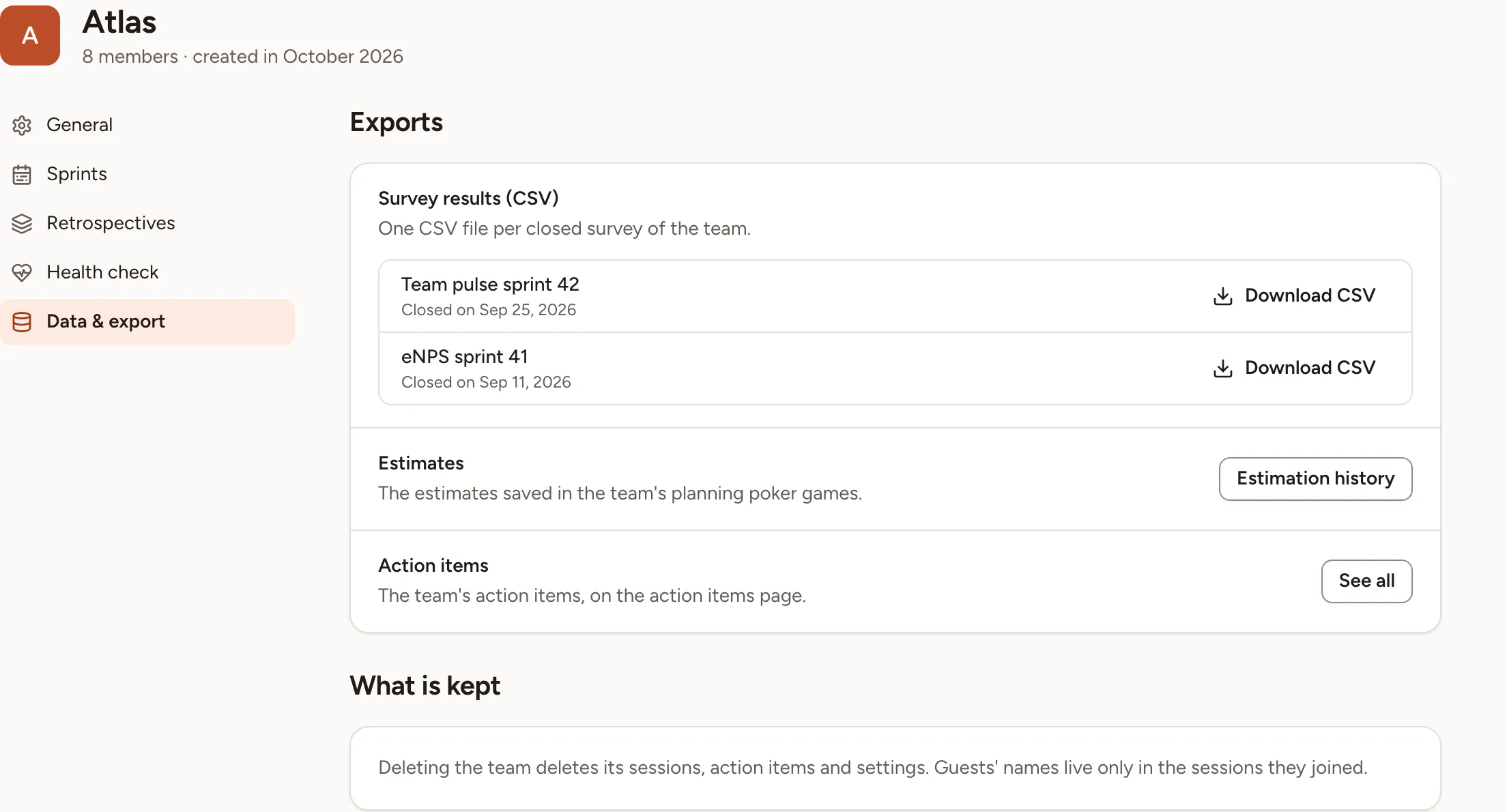
The Exports card has three lines.
| Line | What it gives you |
|---|---|
| Survey results (CSV) | One Download CSV per closed survey of the team |
| Estimates | Estimation history opens the Estimates tab of Insights: see Estimates history |
| Action items | See all opens the action items page on this team: see Track action items |
About the surveys of the first line:
- A survey is listed once it is closed and at least three people answered it. Under that number a survey shows no results, so it has none to export.
- The health check of a retro is not listed.
- The list holds the 50 most recently closed surveys.
- An owner or admin of the workspace sees every survey of the team. A team owner who is neither sees the surveys they created.
The page has no single export of everything the team holds: these three lines are what it offers.
What is kept
The What is kept card says what deleting the team removes: “Deleting the team deletes its sessions, action items and settings. Guests’ names live only in the sessions they joined.”