Integrations
Mattermost
Name your Mattermost server, create an incoming webhook for a channel and paste its address so a team can post there.
After this page, a team can post the link of a session and the results of a retrospective to a Mattermost channel. An instance admin names the one Mattermost server teams may post to; each team then pastes an incoming webhook of that server.
What it does
- Share links: post the link of a retrospective, a planning poker game or a game room with Post link to Mattermost, under Post a link in the session’s share dialog.
- Share results: post the recap of a completed retrospective with Share to Mattermost, in its Share menu.
Who can set it up
- The server’s address: an instance admin, in Administration, then Integrations.
- A team’s channel: a workspace owner or admin, or the team’s owner, on the team’s Integrations page. That person also needs the right to create an incoming webhook in Mattermost.
Before you start
- An instance posts to one Mattermost server. Teams cannot paste a webhook of another one.
- Skrüm calls Mattermost; Mattermost never calls Skrüm. Both can sit on the same private network, as long as the server running Skrüm reaches the Mattermost server.
- Incoming webhooks must be enabled on the Mattermost server.
On the vendor’s side
- In Mattermost, open the product menu, then Integrations, then Incoming Webhooks.
- Select Add Incoming Webhook, give it a name, choose the channel and save.
- Copy the address Mattermost shows. Anyone who has it can post to the channel, so treat it as a secret.
Mattermost describes these steps, and the setting that enables them, in Incoming webhooks.
In Skrüm, Administration
Open Administration, select Integrations, then Configure on the Mattermost row.
| Field | Environment variable |
|---|---|
| Server URL | MATTERMOST_URL |
Enter the address of your Mattermost server, such as https://chat.example.com. The dialog accepts an HTTPS address only. A value saved here wins over the environment variable.
In the team’s Integrations page
- Open the team’s settings and select Integrations.
- Select Connect on the Mattermost row, then Connect in the panel.
- Paste the webhook’s address into Webhook URL.
- Optionally fill in Channel label (optional), 80 characters at most. It is shown on this page only, to remember where messages go.
- Select Connect.
The address must be the Server URL, then /hooks/, then the webhook’s key of 26 letters and digits:
https://chat.example.com/hooks/k7m2qx9dw4hb8tn3fy6cz5ajre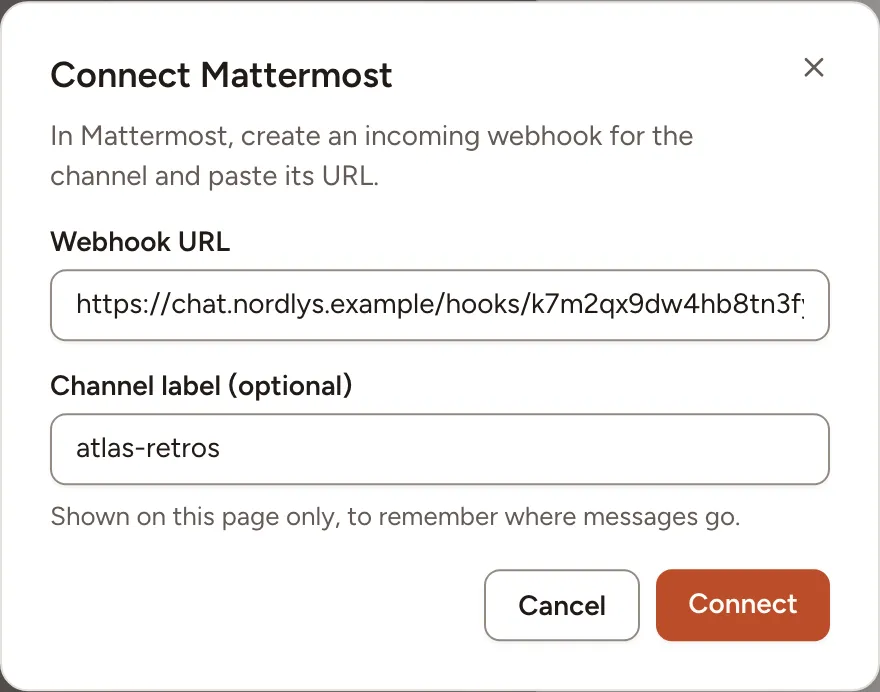
The panel then shows the Host and the Channel label. Skrüm never shows the address again: to change it, select Replace URL and paste the new one.
Test it
Open the panel and select Send a test message. The channel receives “skrum is connected.” and Skrüm shows Test message sent.
Troubleshooting
| What you see | What to do |
|---|---|
| No Mattermost row on the team’s page | The instance has no Server URL, or an instance admin turned Mattermost off |
| Use an incoming webhook of followed by the server’s address | The address is on another server, or does not end with /hooks/ and a 26-character key |
| Reconnect required and The Mattermost webhook no longer works. Paste a new one. | The webhook was deleted or disabled in Mattermost, or the Server URL changed. Select Replace URL |
| Mattermost did not respond. Try again later. | The server could not reach Mattermost |
Disconnecting
Turn the row’s switch off, or select Disconnect in the panel, and confirm. Nothing is posted to the channel any more. The webhook stays in Mattermost: delete it there if you no longer need it.