Integrations
Telegram
Create a bot for your instance, then connect a team to a Telegram group, channel or private chat with a short code.
After this page, a team can post the link of a session and the results of a retrospective to a Telegram group, channel or private chat. An instance admin creates one bot; each team then links a chat to it with a code.
What it does
- Share links: post the link of a retrospective, a planning poker game or a game room with Post link to Telegram, under Post a link in the session’s share dialog.
- Share results: post the recap of a completed retrospective with Share to Telegram, in its Share menu.
The bot reads three commands, /connect, /start and /help. Other messages are neither stored nor logged.
Who can set it up
- The bot and its token: an instance admin, in Administration, then Integrations: see Integration apps.
- A team’s chat: a workspace owner or admin, or the team’s owner, on the team’s Integrations page. That person must also be able to add the bot to the chat in Telegram.
Before you start
- One bot serves the whole instance. Use it for this instance only.
- Never set a webhook on that bot. Skrüm asks Telegram for the bot’s new messages every minute, and Telegram refuses that while a webhook is set.
- Skrüm calls
api.telegram.org; Telegram never calls Skrüm. An instance on a private network works as long as its server reaches that host. - The scheduler must be running, or the connect command is never read. See Processes and status.
On the vendor’s side
- In Telegram, open a chat with @BotFather and send
/newbot. - Give the bot a name and a username when asked.
- Copy the token BotFather answers with. It is the only value Skrüm needs.
Telegram describes BotFather in Bot features, and the rule about webhooks under getUpdates.
In Skrüm, Administration
Open Administration, select Integrations, then Configure on the Telegram row.
| Field | Environment variable |
|---|---|
| Bot token | TELEGRAM_BOT_TOKEN |
Select Save. A value saved here wins over the environment variable.
In the team’s Integrations page
-
Open the team’s settings and select Integrations.
-
Select Connect on the Telegram row, then Connect in the panel. Skrüm shows a command with a code of 8 characters, valid for 15 minutes.
-
In Telegram, add the bot to your group or channel, or open a private chat with it. Open @… in Telegram leads to the bot. In a channel, the bot must be an administrator.
-
Send the command in that chat, exactly as shown:
/connect@your_bot K7M2QX9D -
Skrüm reads the bot’s messages once a minute, so allow about that long. The bot then answers that the chat is connected to the team, Skrüm shows Telegram connected. and the row reads Connected with the chat’s name.
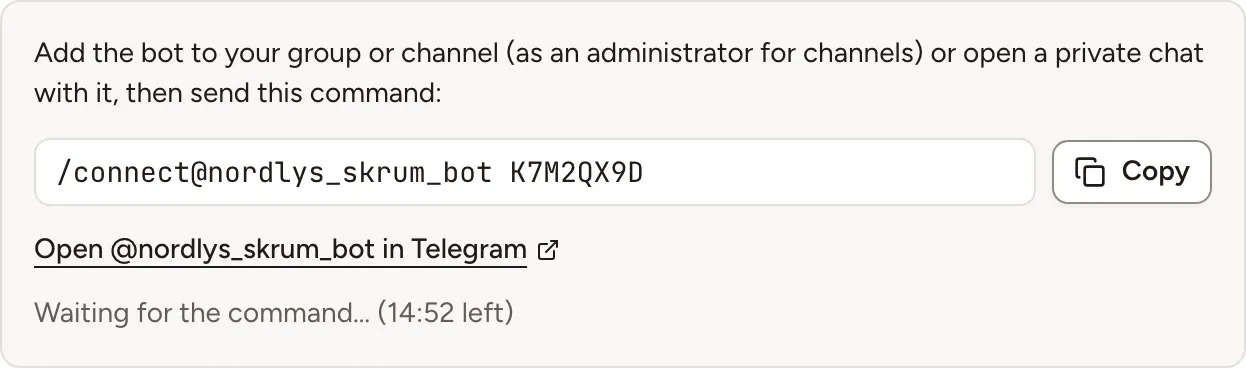
A code works once. Asking for a new code cancels the previous one. A team posts to one chat: Connect another chat gives a new code and replaces it.
Test it
Open the panel and select Send a test message. The chat receives “skrum is connected.” and Skrüm shows Test message sent.
Troubleshooting
| What you see | What to do |
|---|---|
| This code has expired. Create a new one. | The 15 minutes passed. Select Connect again and send the new command |
| The bot answers This code is invalid or has expired. | Ask for a new code. After five wrong codes from the same chat, the bot ignores that chat’s connect commands for an hour |
| The bot does not answer | The command went to another bot, or the scheduler is not running. Send the command with the bot’s username, as shown |
| The Telegram bot is used elsewhere. Remove its webhook or use a dedicated bot. | Something else reads this bot’s messages. Remove the webhook set on it, or create a bot for Skrüm alone |
| Telegram did not answer. Check the bot token of this instance. | The token is wrong or revoked, or the server cannot reach Telegram. Connect stays disabled until it works |
| Reconnect required and The bot was removed from the Telegram chat. | Add the bot back, then connect the chat again with a new code |
Disconnecting
Turn the row’s switch off, or select Disconnect in the panel, and confirm. Nothing is posted to the chat any more and the bot leaves it, unless another team of the instance posts to the same chat.