Accounts
API tokens
Create and revoke the tokens that let an AI assistant act for you.
An API token lets an AI assistant that supports MCP read, and if you allow it change, what you can see in Skrüm. This page shows how to create one, where to copy it, and how to revoke it. Connecting the assistant itself is in Connect an assistant.
Tokens are personal: everyone creates their own, and the assistant acts as you, in the teams you can see. The API tokens section is in Settings when the MCP server of the instance is on and the email address of your account is verified. Skrüm asks you to confirm your password before it shows your tokens or creates one.
Create a token
- Open Settings and go to API tokens.
- Enter a Token name that tells you which assistant uses it, for example “Claude Code”. Two of your tokens cannot have the same name.
- Choose an Expiration: 30 days, 90 days (the default), 1 year or Never.
- Choose a Team to limit the token to one team, or leave All my teams.
- Tick the Scopes the assistant needs (next section).
- Select Create token.
Scopes
| Scope | Label | What it allows |
|---|---|---|
mcp:read |
Read | Reading. Every token has it; it cannot be unticked |
mcp:write |
Create and update | Creating and updating |
mcp:delete |
Delete my messages | Deleting messages you wrote |
The tools of the server are listed in Tools reference.
Copy the token
The token is shown once, right after you create it, with the message “Copy your token now. You won’t be able to see it again.”
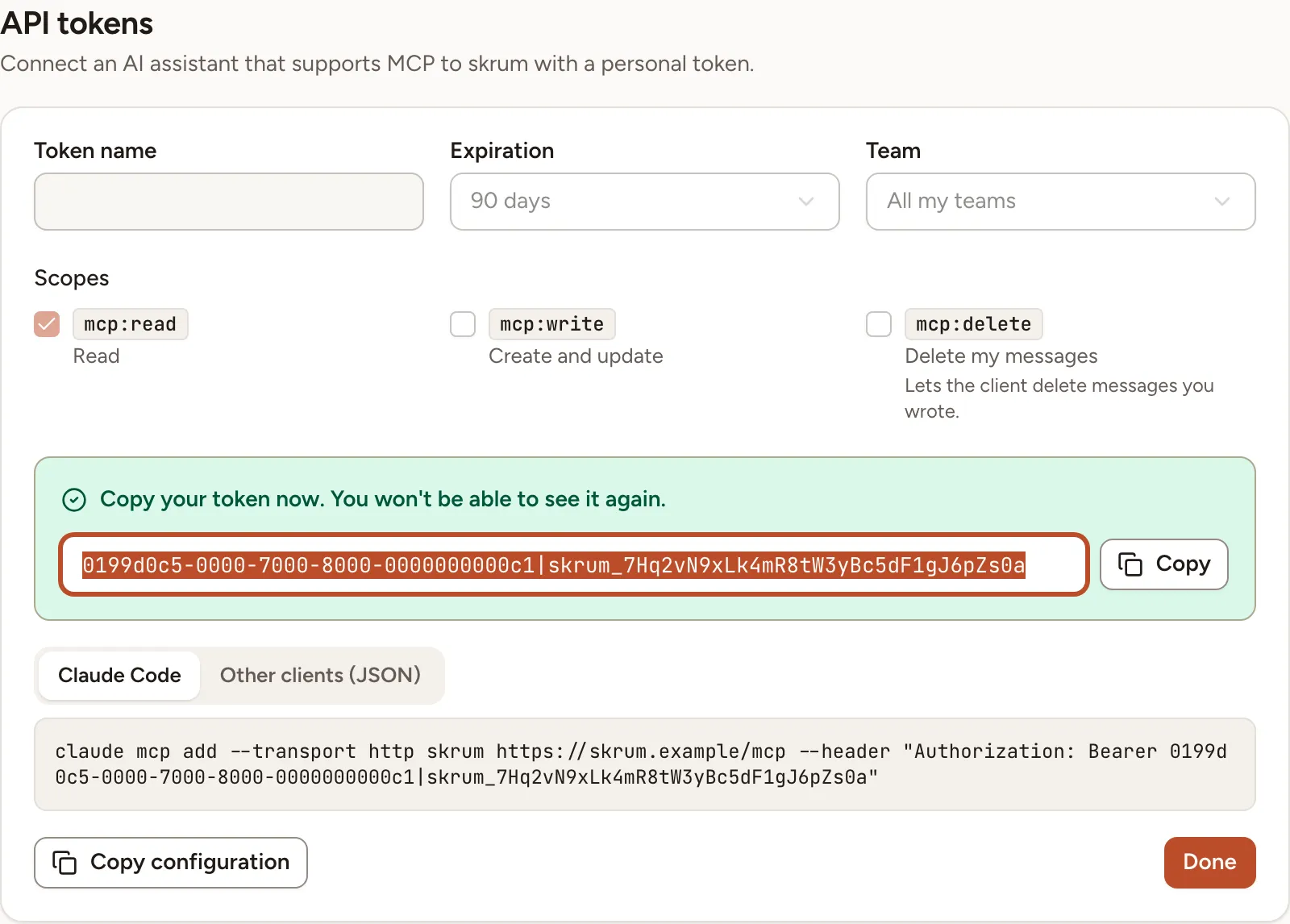
- Copy copies the token alone.
- Client configuration gives the token already placed in a configuration: the Claude Code tab is a command to run, Other clients (JSON) is a block for clients configured with a file. Copy configuration copies the one on screen.
- Done closes the panel. After that the token cannot be shown again; create another if you lost it.
The MCP server card under the list gives the Server URL of the instance. The assistant must be able to send an Authorization header; connectors that ask you to sign in on the web are not supported.
What the assistant reads through a token is sent to the AI application you use.
See and revoke your tokens
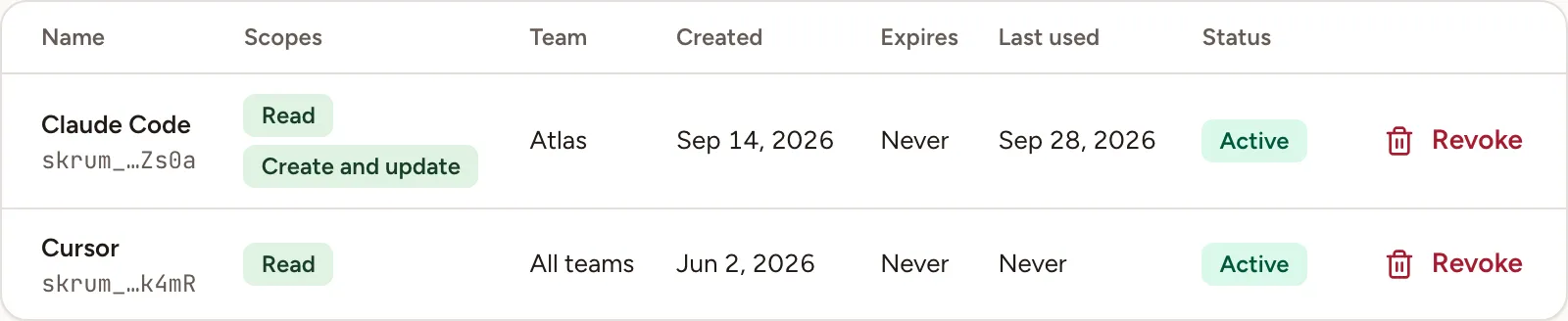
The list shows each token with the last characters of its value, its scopes, its team, when it was created, when it expires, when it was last used, and whether it is Active or Expired. A token limited to a team you have left shows “No access to this team anymore”.
To revoke a token:
- Select Revoke on its row.
- Confirm with Revoke.
The assistant that used it loses access on its next request.
Changing your password does not revoke your tokens. Revoke them here.