Workspaces and teams
Members and roles
Who can do what in a team, and how to change it.
See who is in a team, give each person the role that fits, add or remove members, and answer the people who ask to join. Every member can read the list; a team owner changes it.
The four team roles
| Owner | Facilitator | Member | Observer | |
|---|---|---|---|---|
| Open the team, its sessions and its members | Yes | Yes | Yes | Yes |
| Start a retrospective, a planning poker game, a whiteboard, a survey or an icebreaker | Yes | Yes | Yes | No |
| Invite people by email or with the invite link | Yes | Yes | No | No |
| Take control of an open session | Yes | Yes | No | No |
| Set the sprints and the retrospective settings, read the health check statements | Yes | Yes | No | No |
| Change roles, add and remove members, answer access requests | Yes | No | No | No |
| Rename the team, change its link, change its health check statements, set its integrations, export its data | Yes | No | No | No |
The interface sums the two special roles up this way: “Facilitator: drives phases, timer and reveal, and can take control of any open session. Observer: read-only, does not vote.”
A workspace owner or admin has the rights of a team owner in every team of the workspace, whether or not they are one of its members, and is never treated as an observer. Deleting a team is theirs alone: see Team settings.
See the members
In the sidebar, under Team, select Members.
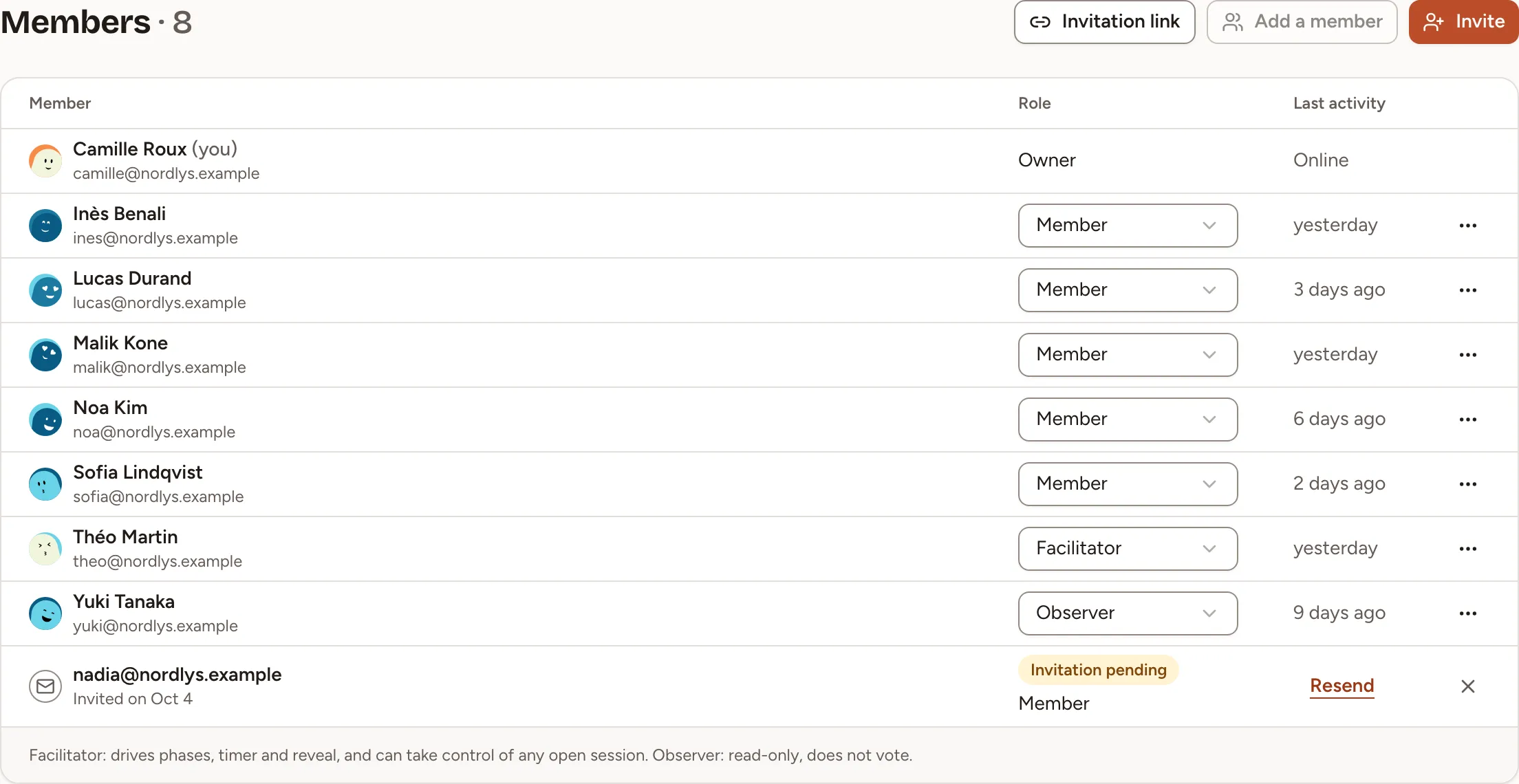
Last activity tells when each person last took part in a session of the team: Online, a time such as “3 days ago”, or Never. The invitations that wait for an answer follow the members, for the people who may invite.
Change a role
Team owners only.
- Open Members.
- In the Role column, open the list of the person and pick Owner, Facilitator, Member or Observer.
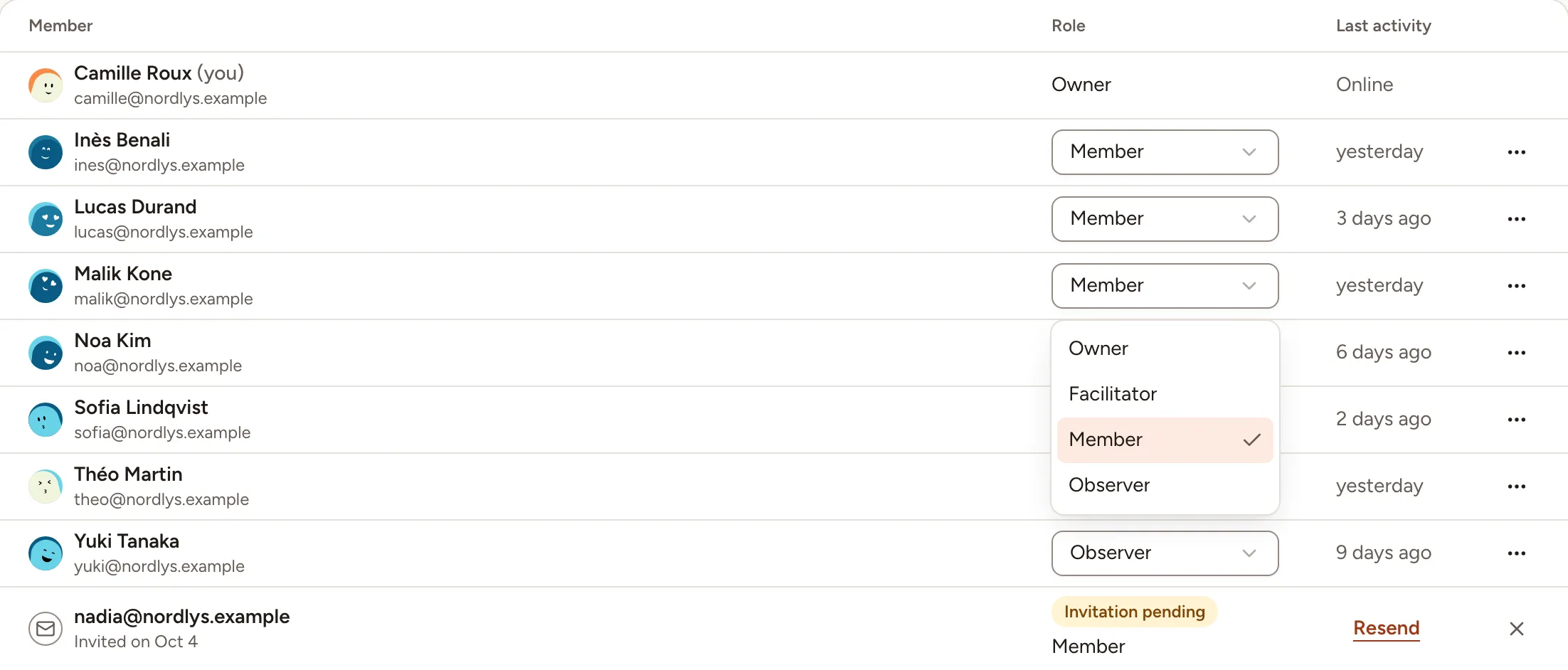
The change applies at once. You cannot change your own role. Someone who is no longer owner or facilitator also leaves the team’s list of default facilitators, described in Rituals and retro settings.
Add someone who is already in the workspace
- Open Members and select Add a member.
- Pick the person under Member and their Role, then select Add.
The button is greyed out when everyone in the workspace is already in the team. To bring in someone who is not in the workspace yet, see Invitations and invite links.
Remove a member
- Open Members.
- Open the menu at the end of the person’s row and select Remove from team, then confirm.
They stay in the workspace and can be added back to the team.
Access requests
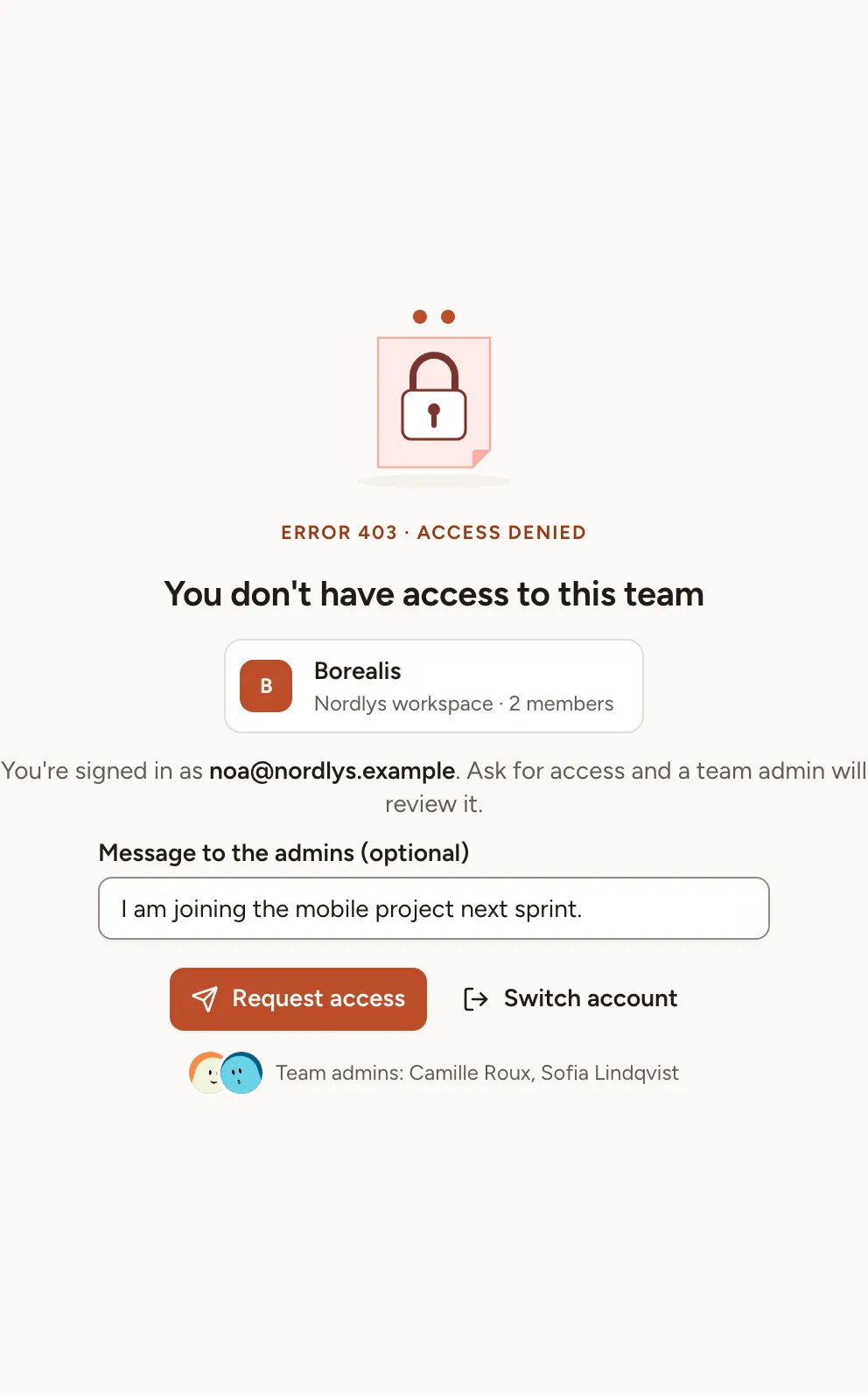
Someone who belongs to the workspace and opens a team they are not in, or one of its sessions, is refused, with a way to ask for access: an optional message of 500 characters at most and Request access. One request at a time waits per person and team.
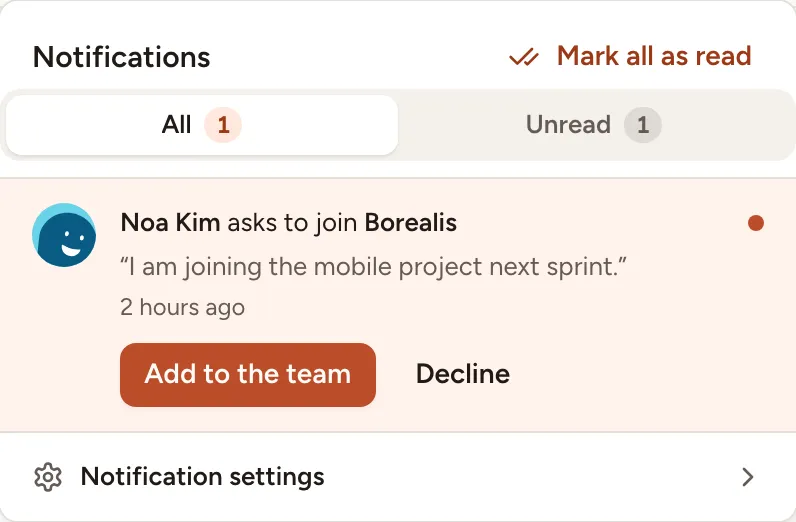
The request reaches the bell of the team’s owners and of the workspace’s owners and admins. Add to the team makes the person a member of the team; Decline refuses. Either way they are told in their own notifications.
Someone outside the workspace gets the refusal without the request: invite them instead.