Administration
General and branding
Decide who may create an account, write the maintenance message, and give the instance your name, logos, colour and GIF provider.
This page covers the first two sections of Administration: General (sign-up, email verification, the maintenance message, the update check) and Branding (name, logos, colour, corners, avatars, GIFs). Only an instance admin can open them.
Open Administration
- In the sidebar, select Admin. The entry is shown to instance admins only.
- Skrüm asks for your password before it opens the first section. Type it and select Confirm password.
The sections are listed on the left, under Instance and Supervision. Under them, a box shows the address of the instance and its version.
On General and Branding, nothing is stored until you save. The bar at the top right counts your unsaved changes; Save stores them and Cancel puts the form back as it was.
General
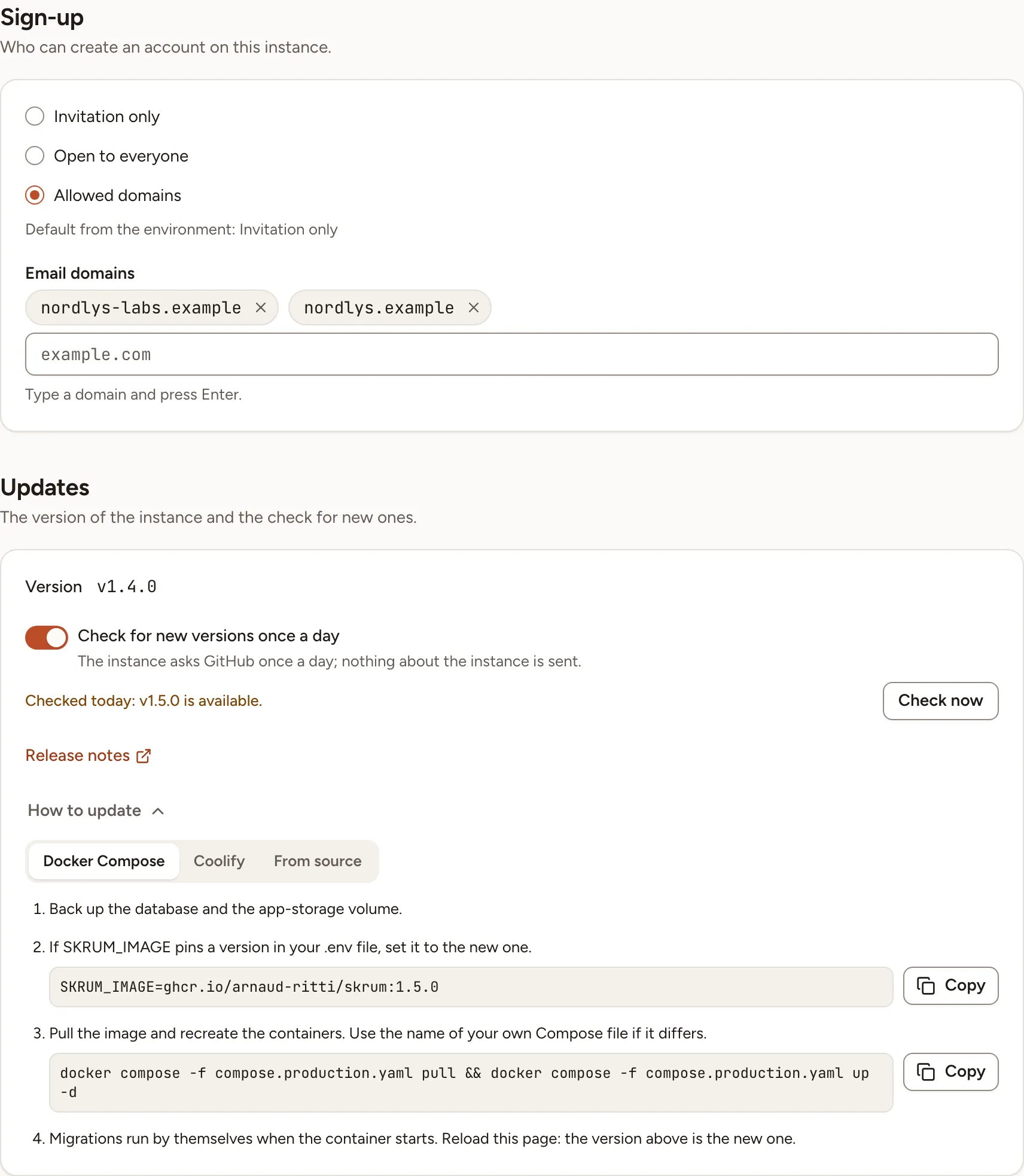
Sign-up
Sign-up decides who can create an account on the instance.
| Choice | Who can create an account |
|---|---|
| Invitation only | Someone invited to a workspace by email, with the address the invitation was sent to, or someone who opens a team’s invite link |
| Open to everyone | Anyone who reaches the sign-up page |
| Allowed domains | Anyone whose email address is on one of the domains you list. A person invited to a workspace by email can still sign up with the invited address, whatever its domain |
With Allowed domains, type a domain under Email domains and press Enter. You can list up to 20 domains, and you need at least one.
The line “Default from the environment” shows what SKRUM_SIGNUP_MODE (invite, open or domain) and SKRUM_ALLOWED_EMAIL_DOMAINS (domains separated by commas) set. What you save here wins over the environment.
The first account created on a new instance is accepted whatever the mode, and becomes an instance admin.
Sign-up through a single sign-on provider follows the same rule: see Sign-in and SSO.
Email verification
Choose whether members must verify their email before using the instance:
| Choice | Behaviour |
|---|---|
| Use environment default | Follow SKRUM_REQUIRE_EMAIL_VERIFICATION, which defaults to true |
| Required | Require verification, regardless of the environment value |
| Optional | Allow signed-in members to use the instance without verifying their email |
Select Save to apply the choice. Use environment default clears a saved override. Making verification optional does not mark accounts as verified; email-based sign-in and email two-factor authentication still require a verified address.
Maintenance message
Message is a note of up to 280 characters for everyone while the instance is down for maintenance. It is shown on the maintenance page from the next artisan down, with the name of the admin who saved it. Under the field, the card shows who saved the current message and when. Clear empties the field.
Updates
The Updates card shows the version of the instance and checks for newer ones. It is described in Licence and updates.
Branding
Branding applies to the whole instance, guests included. While you edit, Live preview shows the result in the light and the dark theme; the instance itself changes when you select Save.
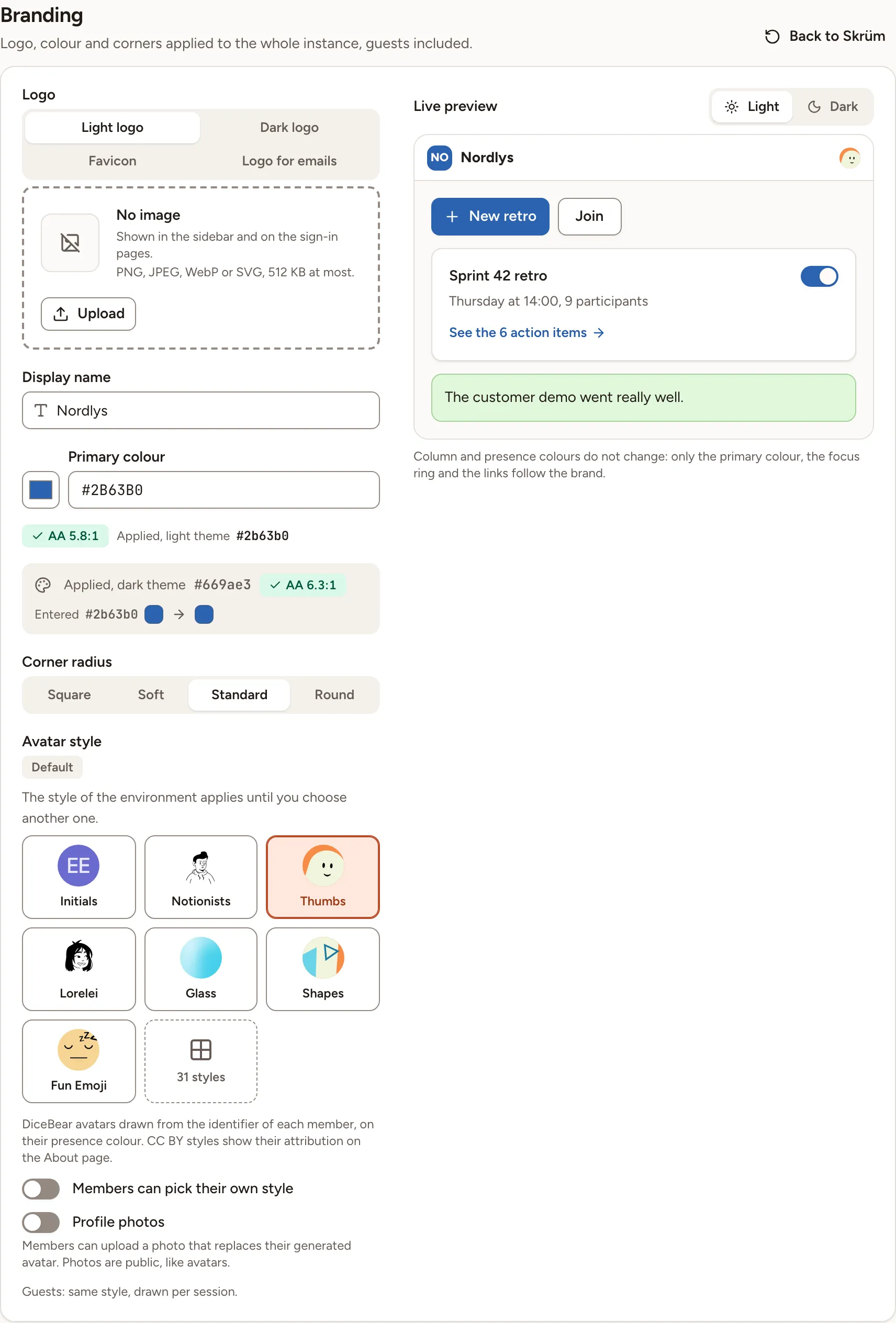
| Field | What it sets |
|---|---|
| Logo | Four images, one per tab. Light logo is shown in the sidebar and on the sign-in pages. Dark logo is optional: the light logo is used without it. Favicon is the icon of the browser tab. Logo for emails must be a PNG or JPEG at least 128 px wide, because mail clients do not draw SVG; without it, emails use the light logo or the name. The other images are PNG, JPEG, WebP or SVG, 512 KB at most |
| Display name | The name of the instance, up to 60 characters. The default is the value of APP_NAME |
| Primary colour | Any hex colour with 3 or 6 digits, such as #2B63B0. Skrüm derives the shades and keeps text readable: under the field you read the colour applied in the light theme and in the dark theme, each with its contrast ratio, beside the colour you entered |
| Corner radius | Square, Soft, Standard or Round |
| Avatar style | The DiceBear style of the generated avatars. The default comes from SKRUM_AVATAR_STYLE. A style that requires attribution shows it on the About page |
| Members can pick their own style | Lets each member choose another avatar style for themselves |
| Profile photos | Lets members upload a photo that replaces their generated avatar. Photos are public, like avatars |
To change an image, open its tab and select Upload (or Replace), or Remove. The image is marked Not saved until you select Save.
Column and presence colours do not change with the brand: only the primary colour, the focus ring and the links follow it.
The “Powered by” line
Under Sign-in pages, Show “Powered by Skrüm” adds a discreet mention on the sign-in pages and on the About page. It is on by default.
Go back to the default look
Back to Skrüm deletes every setting of the Branding section: the colour and the radius, the logos and the favicon, the display name, the avatar style and the two avatar switches, the “Powered by” switch, and the GIF provider, rating and API key. Skrüm asks you to confirm with Reset to Skrüm. This cannot be undone.
GIFs
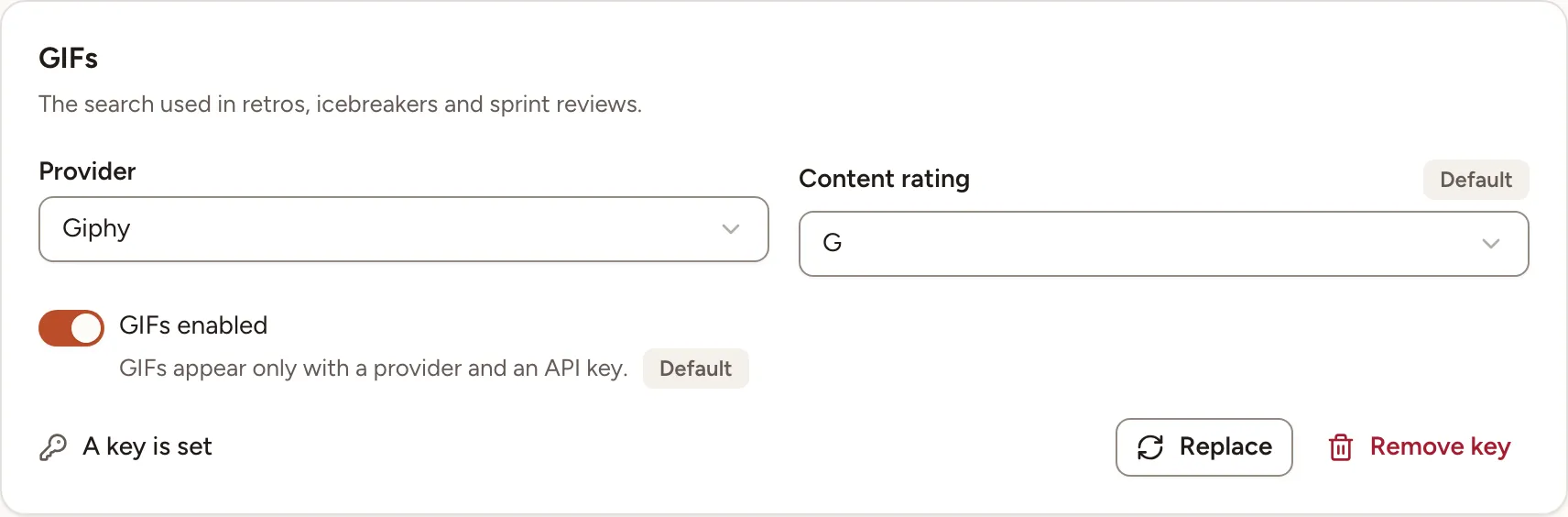
The GIFs card, at the bottom of Branding, sets the GIF search used in retrospectives, icebreakers and sprint reviews. GIFs appear only when a provider and an API key are set.
- Get an API key from the provider.
- Giphy: GIPHY API documentation, which links to the creation of a key.
- Tenor: Tenor API quickstart. That page states that, as of January 2026, Tenor no longer accepts new API clients: choose Tenor only if you already have a key.
- Under Provider, choose Giphy or Tenor. None hides GIFs.
- Paste the key in API key. It is stored encrypted and never shown again; later the card reads A key is set, with Replace and Remove key.
- Under Content rating, choose G, PG, PG-13 or R.
- Leave GIFs enabled on, then select Save.
The same values can come from the environment: SKRUM_GIF_PROVIDER (giphy or tenor), SKRUM_GIF_API_KEY and SKRUM_GIF_RATING (g, pg, pg-13 or r). A field for which nothing is saved here carries a Default mark; what you save here wins.