Self-hosting
Upgrading
Back up, show a maintenance page, pull the new image and let Skrüm migrate.
Move your instance to a newer version: back up, pull the new image and recreate the container. Skrüm applies its database migrations by itself when the container starts. The commands use compose.production.yaml; with the MariaDB or the SQLite file, use that file in each command.
Choose when upgrades happen
By default the Compose file starts ghcr.io/arnaud-ritti/skrum:latest. That tag is rebuilt from the main branch of the project at every change, so each pull can bring a new version.
To upgrade when you choose, set the image in .env to a release:
SKRUM_IMAGE=ghcr.io/arnaud-ritti/skrum:<version>A release is published under its version number, such as 1.2.3, and under its minor line, such as 1.2. To upgrade, change the version in .env, then follow the steps below.
Back up
Back up two things, together:
-
The database. With the default file, it is the PostgreSQL database of the
pgsqlservice, kept in thepgsql-datavolume. For example, with the default user and database name:docker compose -f compose.production.yaml exec -T pgsql pg_dump -U skrum skrum > skrum.sql -
The uploaded files, kept in the
app-storagevolume. For example:docker compose -f compose.production.yaml cp app:/app/storage/app ./storage-app-backup
For SQLite, see Database.
Show a maintenance page
This step is optional. It tells people who are using the instance that it will come back.
-
To add a message of your own, open Administration, then General, and fill Message in the Maintenance message card, 280 characters at most. Select Save. Only an instance admin can do this. The page shows the message that is saved at the moment maintenance starts, with the name of the admin who wrote it.
-
Start maintenance, with the number of seconds you expect it to last:
docker compose -f compose.production.yaml exec -u www-data app php artisan down --retry=1800
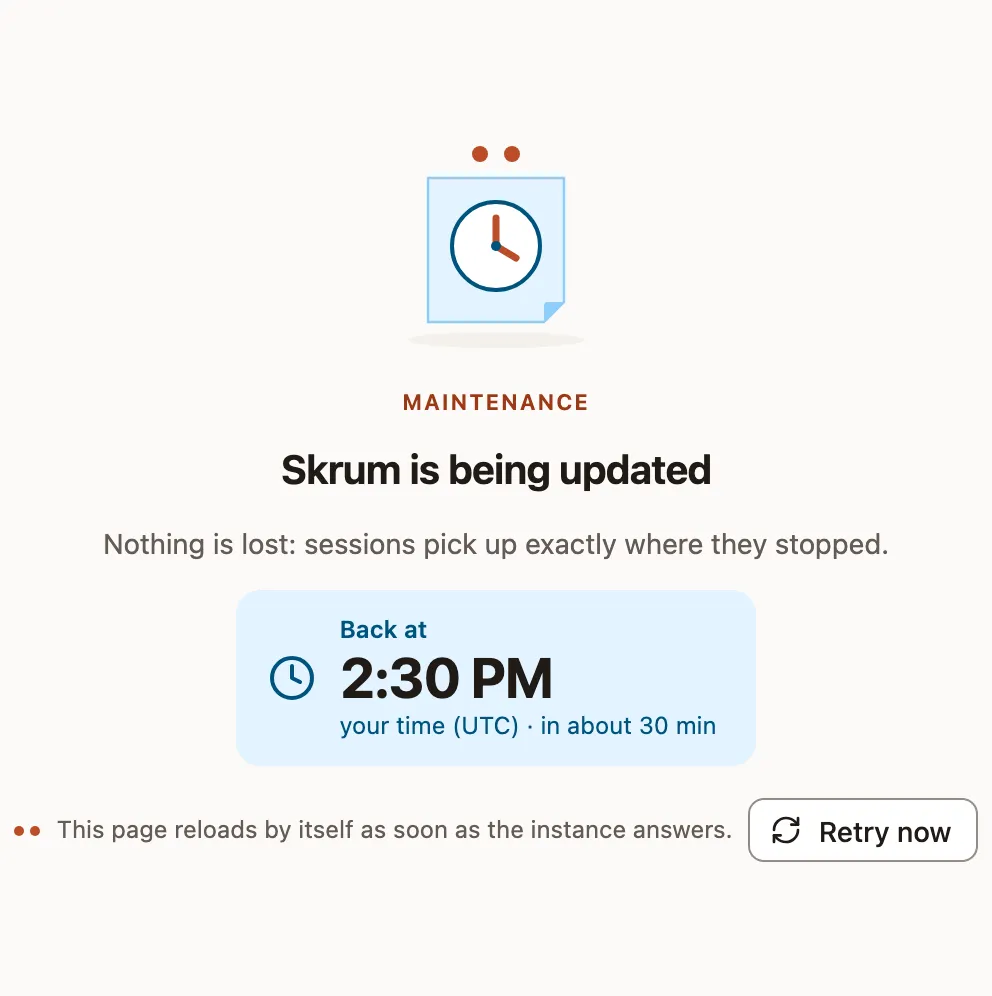
Everyone now sees this page in place of the application. It shows the time of return, computed from --retry and written in each visitor’s own time zone. It asks the instance every 30 seconds whether it answers, and reloads by itself when it does. The status page stays available and reads Maintenance in progress.
Recreating the container ends maintenance: the new container starts in normal mode. If you did not recreate it, end maintenance yourself:
docker compose -f compose.production.yaml exec -u www-data app php artisan upPull and recreate
docker compose -f compose.production.yaml pull && docker compose -f compose.production.yaml up -dWhen the new container starts, it checks the database and applies the pending migrations before it serves the first page. If it keeps restarting, docker compose -f compose.production.yaml logs app says why.
Know when a new version exists
Skrüm does not look for new versions unless you ask it to. To turn the check on, as an instance admin:
- Open Administration, then General.
- In the Updates card, turn on Check for new versions once a day, then select Save.
The instance then asks GitHub for the latest release once a day, and sends nothing about itself. Check now asks at once. The card shows the running version and the result of the last check. The Administration menu shows the version too and, after a check, whether it is up to date.
An image built from the main branch, such as latest, is not a release: the card says that it is not compared with new versions.
Notes for instances installed from an early build
These notes concern you only if your Compose file or your .env is older than the change they describe.
Uploaded files moved to a volume
Before the app-storage volume existed, profile photos and brand assets were kept in the container itself. The first time you upgrade to a Compose file that has the volume, copy them out before the upgrade and back in after it, and give them to the user of the application:
docker compose -f compose.production.yaml cp app:/app/storage/app ./storage-app-backup
docker compose -f compose.production.yaml pull && docker compose -f compose.production.yaml up -d
docker compose -f compose.production.yaml cp ./storage-app-backup/. app:/app/storage/app
docker compose -f compose.production.yaml exec -u root app chown -R 82:82 /app/storage/app
Realtime credentials are optional
REVERB_APP_ID, REVERB_APP_KEY and REVERB_APP_SECRET are derived from APP_KEY when they are empty. Values you already set are kept: an existing .env needs no change.
Password breach check
New passwords are checked against known data breaches, which needs outbound access to api.pwnedpasswords.com. On an instance without it, set SKRUM_PASSWORD_BREACH_CHECK=false. See Configuration reference.
Profile photos
Profile photos are off until an instance admin turns on Profile photos in Administration, then Branding. They are kept in the app-storage volume.
Active sessions behind a proxy
The Active sessions card of the account’s security settings shows the IP address of each device. Behind a reverse proxy, set TRUSTED_PROXIES, or every line shows the address of the proxy.