Action items
Export and tracker sync
Export action items to a file, or to Jira, Linear and GitHub, and keep their status in step.
You can download the action items as a CSV file, or turn an item into an issue of your team’s tracker: Jira Cloud, Jira Data Center, Linear or GitHub. With status sync on, the item and its issue then follow each other.
Download a CSV file
In the Action items page, set the filters to the items you want, then select Export in the top bar. The file holds every item that matches the filters, on all pages, in the order of the list.
Its columns are Action, Status, Team, Assignee, Priority, Due date, Source (the title of the retrospective, or Added outside a retro), Created, Completed, Tickets (the keys of the issues the item was exported to) and Link (the address of the item in Skrüm).
Export an item to a tracker
The team must have the tracker connected with read and write access: see Jira Cloud, Jira Data Center, Linear or GitHub. You can export the items you may edit: the ones you wrote, the ones of a retro you facilitated, and all of them if you are a workspace owner or admin.
- In the Ticket column of the item, or at the bottom of its details, select the export button. With one tracker it reads Export to Jira (or the name of yours); with several, Export lists them.
- Choose where the issue goes: a Project and an Issue type for Jira, a Linear team for Linear, a Repository for GitHub. Skrüm proposes the team’s last choice.
- Read the two lines under the fields: the assignee and the priority the issue will get.
- Select Export.
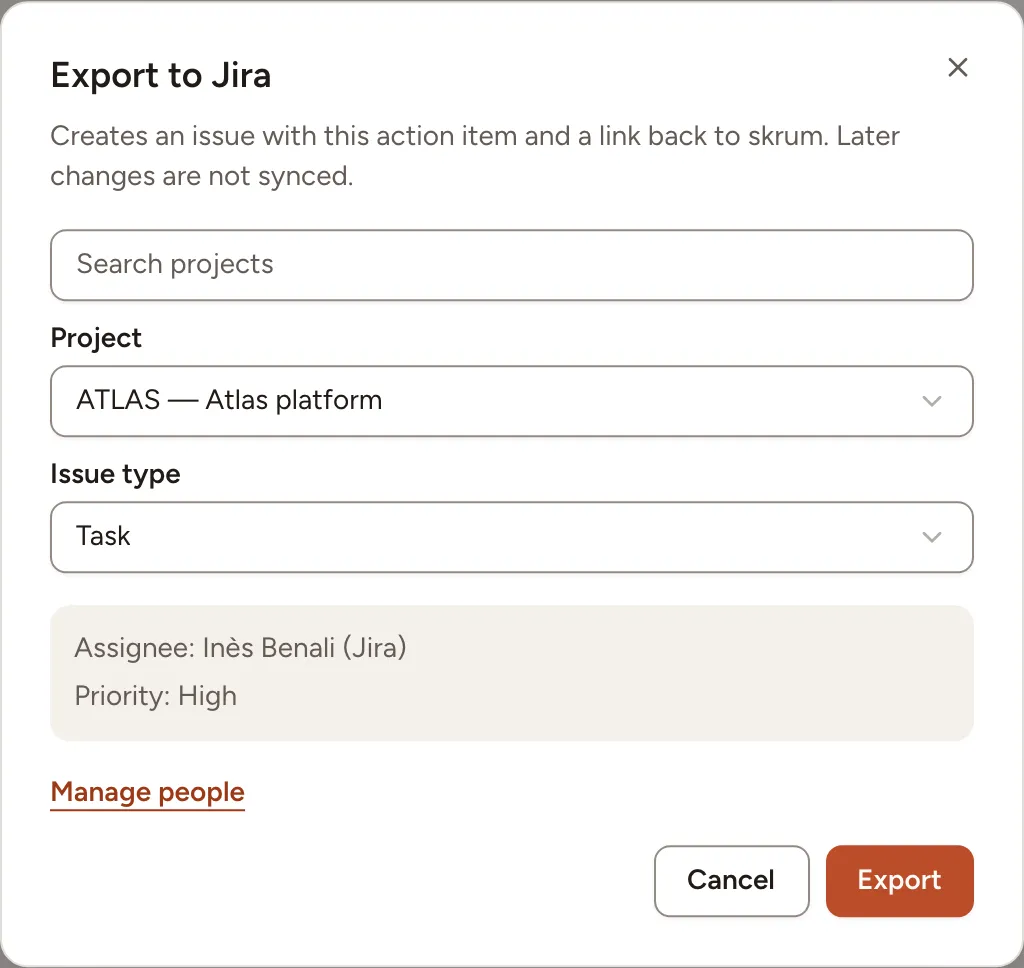
The issue gets the first line of the item as its title, then its text, the retro it comes from, a link back to the item in Skrüm, and its due date.
- Assignee: the tracker account mapped to the member under People, in the settings of the team’s tracker. A member who is not mapped yet is looked up by email address (Jira, Linear) or by their GitHub sign-in. When nothing matches, or when the assignee is a guest, the issue is created unassigned and a message says so.
- Priority: mapped under Priorities (Jira, Linear) or Priority labels (GitHub), in the same settings.
An item is exported once to each tracker. Its key then shows in the Ticket column and under External links in the details; selecting it opens the issue. Guests of a retro do not see tickets.
To export several items of one team, select their rows and choose Sync to Jira (or your tracker) in the bar: you choose the target once, and the items already linked are skipped.
Later changes to the item are not copied to the issue: renaming it or changing its assignee leaves the issue as it is. Only the status can follow.
Keep the status in step
Status sync is off until the team’s owner, or a workspace owner or admin, turns on Sync status under Status sync, in the settings of the team’s tracker. The first sync takes the state of every linked issue: items may be completed or reopened to match. After that, the most recent change wins.
| When | Then |
|---|---|
| You mark the item as done, or reopen it | Its issue moves to a done status, or is reopened |
| You start the item | Its Jira or Linear issue moves to an in-progress status. A GitHub issue stays open |
| The issue is closed in the tracker | The item becomes Done, and its details say Completed in Jira (or your tracker) |
| The issue is reopened or started in the tracker | The item goes back to To do or In progress |
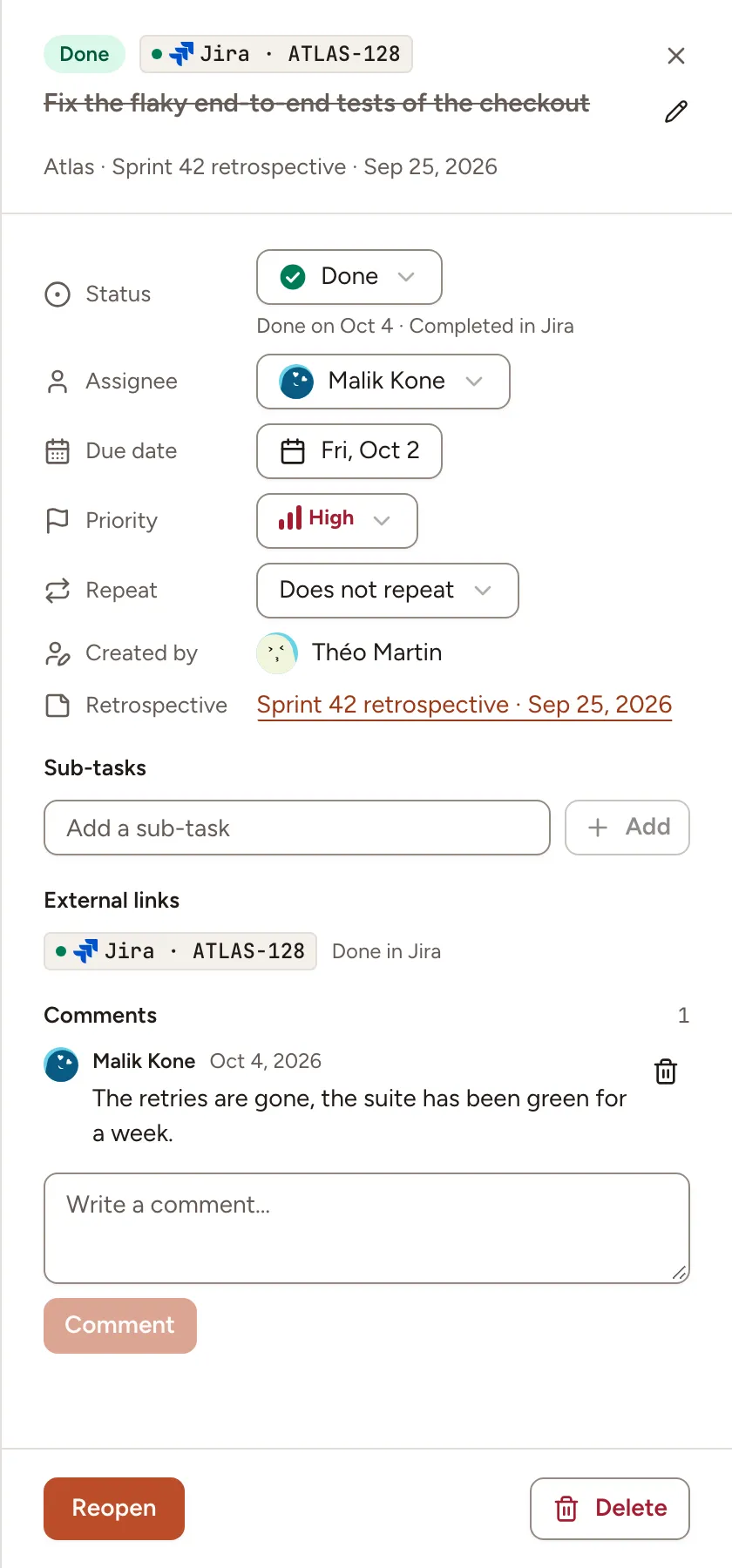
Changes made in the tracker arrive at once where the tracker can call Skrüm; otherwise Skrüm asks the tracker every few minutes, and Status sync says how often. Issues of items completed more than 90 days ago are no longer followed.
Under Status mapping, Automatic uses the done statuses of each workflow. Per Jira project or Linear team you can choose where an issue goes (Start to, Complete to, Reopen to) and, for Jira, which statuses complete the item (Counts as done). For Linear and GitHub, Treat canceled as done decides whether a canceled issue, or one closed as not planned, completes the item.
In the details of an item, each link says how its sync is doing: a status such as Done in Jira when the item and the issue agree, Sync pending while a change is on its way, Sync failed with the reason and a retry button, or Not found in Jira when the tracker no longer returns the issue.