Administration
Users and admins
Find an account, deactivate or reactivate it, and add or remove an instance admin.
In Administration, Users lists every account of the instance and Admins lists the people who can open Administration. Both are for instance admins only.
Find a user
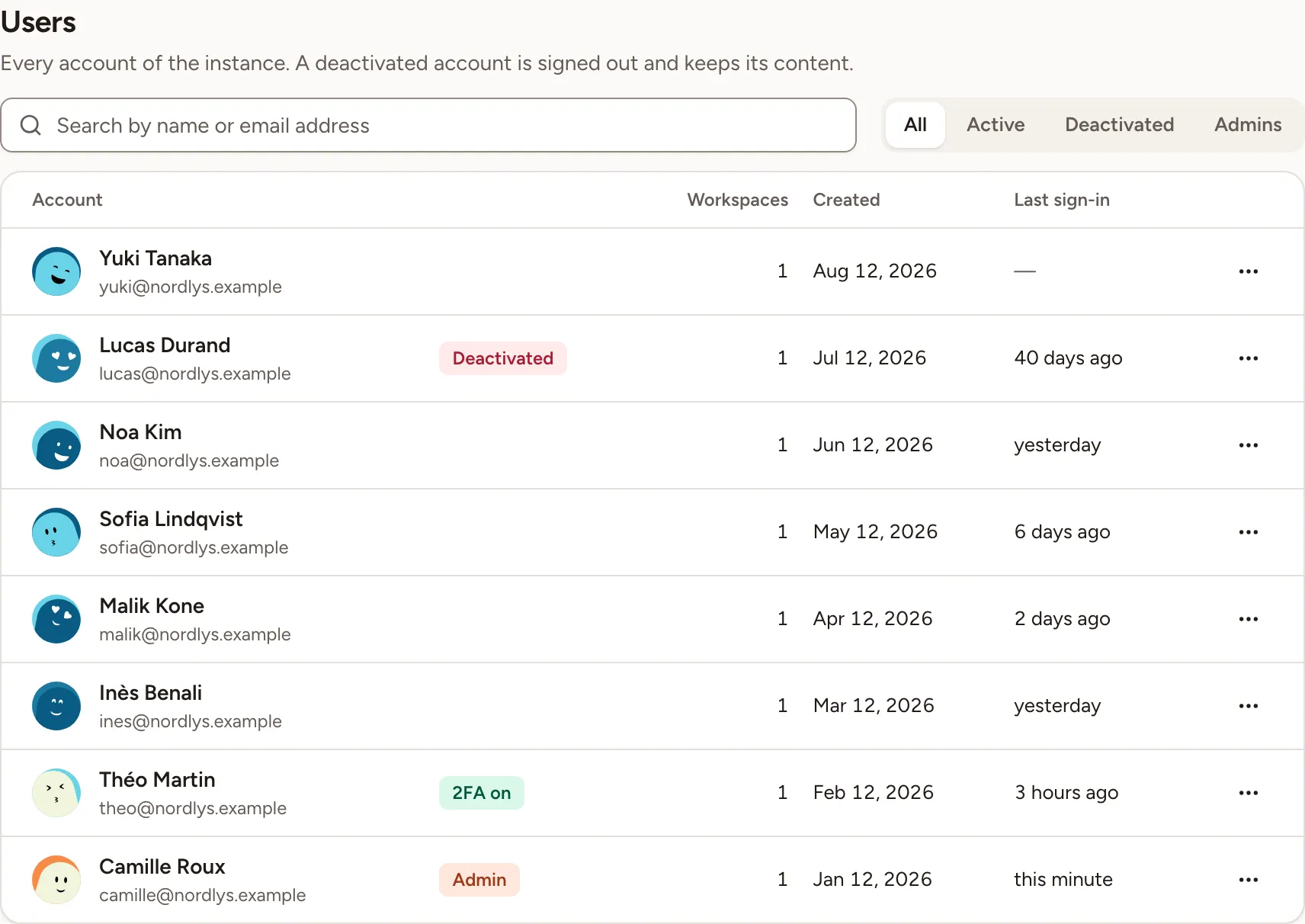
- Open Users. Accounts are listed from the newest to the oldest, 25 per page.
- Type a name or an email address in the search field, or choose a filter: All, Active, Deactivated or Admins.
Each row shows the person’s name and address, the number of workspaces they belong to, the date the account was created and their last sign-in. A badge marks an instance admin (Admin), a deactivated account (Deactivated) and an account with a second factor (2FA on).
Deactivate an account
- On the person’s row, open the menu at the end of the row and select Deactivate.
- Confirm with Deactivate.
A deactivated person:
- is signed out the next time they load a page;
- cannot sign in again, whatever the method: the sign-in page says “This account is deactivated. Ask an admin of the instance.”;
- cannot use their API tokens: an AI assistant connected with one is refused;
- no longer receives action item reminders or retrospective results by email;
- cannot be made an instance admin;
- is no longer counted in Accounts in use, on the Licence page.
Their content stays: cards, action items and everything else they wrote are kept.
You cannot deactivate yourself, and you cannot deactivate the last active instance admin. In both cases the menu entry is disabled.
Reactivate an account
Open the menu on the person’s row and select Reactivate. The account can sign in again at once.
Add an instance admin
The first account created on a new instance is its first instance admin. Others are added from Admins.
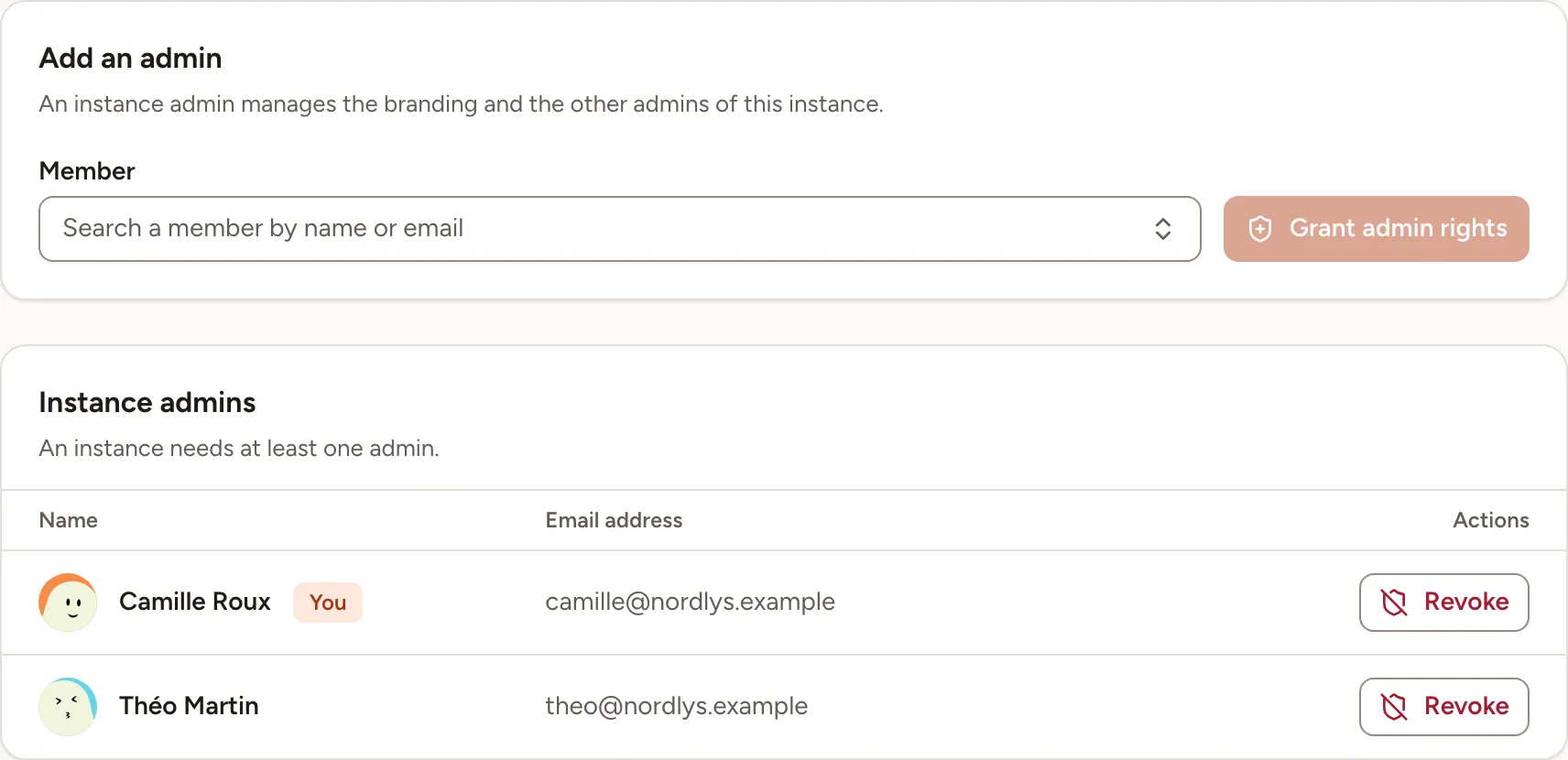
- Open Admins. From Users, the menu entry Make admin brings you to the same page.
- Under Member, type at least two characters of the person’s name or address and choose them in the list. The list holds active accounts that are not admins yet.
- Select Grant admin rights.
Remove an instance admin
- On the admin’s row, select Revoke.
- Confirm with Revoke. The person loses access to Administration and keeps their account.
You can revoke your own rights; Skrüm then takes you back to the dashboard. An instance needs at least one admin: the last active one cannot be revoked.
Deactivations, reactivations, and admin rights granted or revoked are all recorded in the audit log.