Retrospectives
ROTI and close
Ask whether the time was well spent, then close the retrospective.
ROTI, return on time invested, is the last phase: everyone rates the retrospective from 1 to 5. This page covers the vote, its reveal, the health check that can run inside a retro, and what closing the retro leaves on screen.
Give your ROTI
- Read the question, Was this time together worth it?
- Select a score: 1 Waste of time, 2 Not very useful, 3 OK, 4 Useful, 5 Excellent.
- Select another score to change your mind, for as long as the facilitator has not revealed the results.
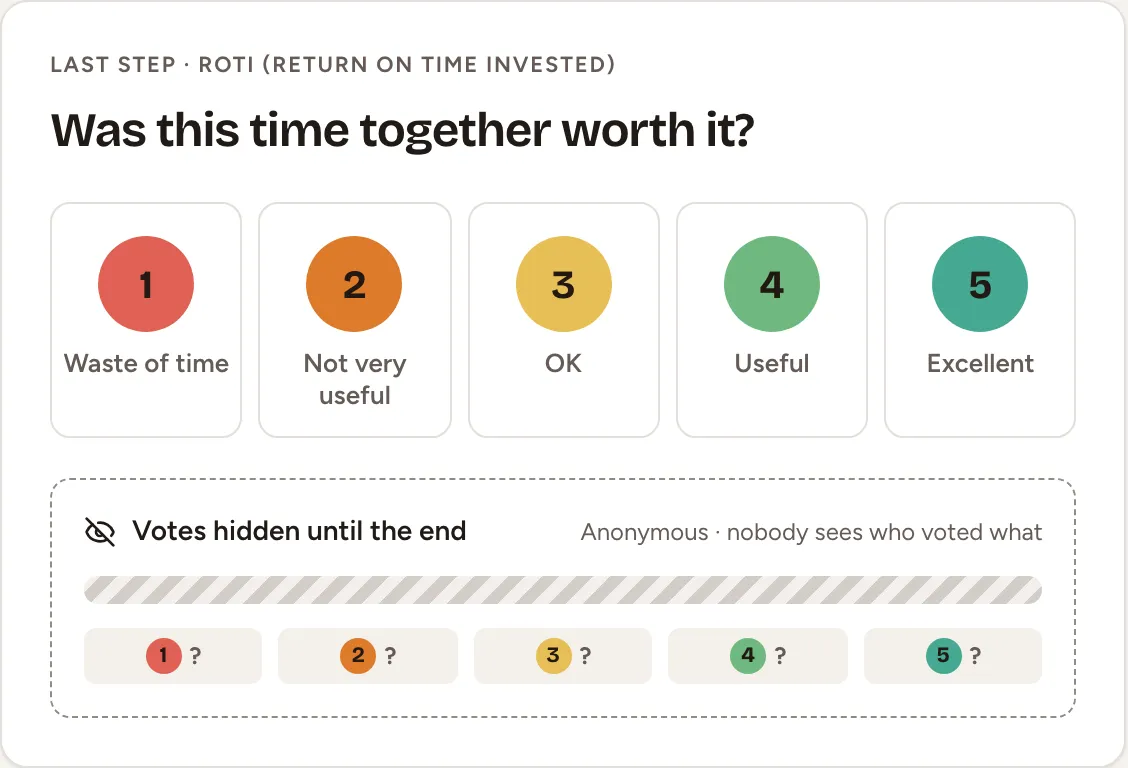
The vote is anonymous: nobody sees who voted what. Observers of the team do not vote.
See who has voted, and nudge the others
Beside the vote, Who has voted lists the people present on the board with Voted or Thinking beside each name, and never a score.
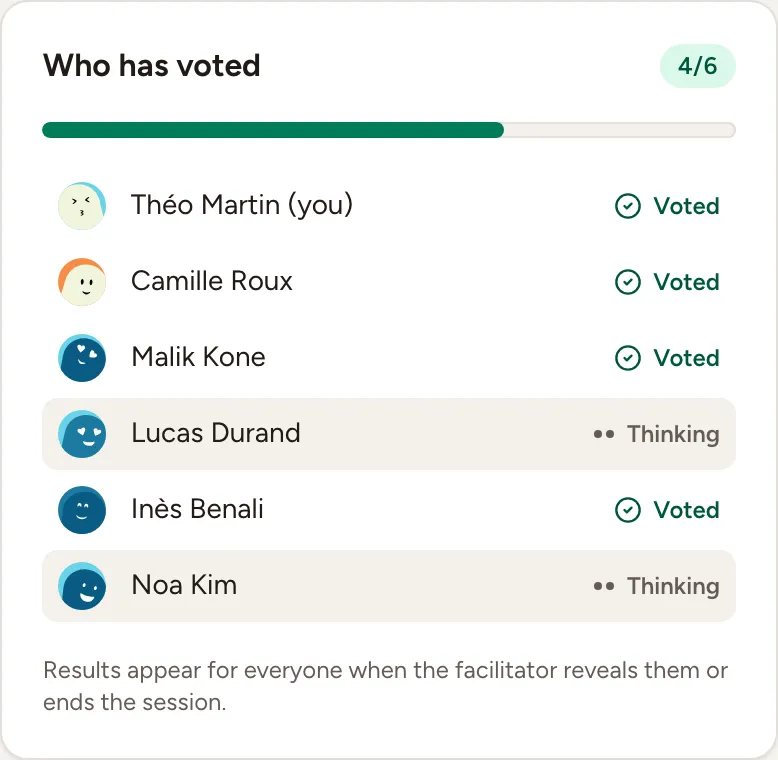
The facilitator’s bar has two buttons for this phase.

- Nudge the last 2 (the number changes with the room) sends “Your ROTI vote is awaited” to the people present who have not voted. It rests for half a minute between two nudges and reads Everyone has voted when nobody is left.
- Reveal ROTI closes the vote and shows the result to everyone: the average out of 5, the number of votes and how many chose each score.
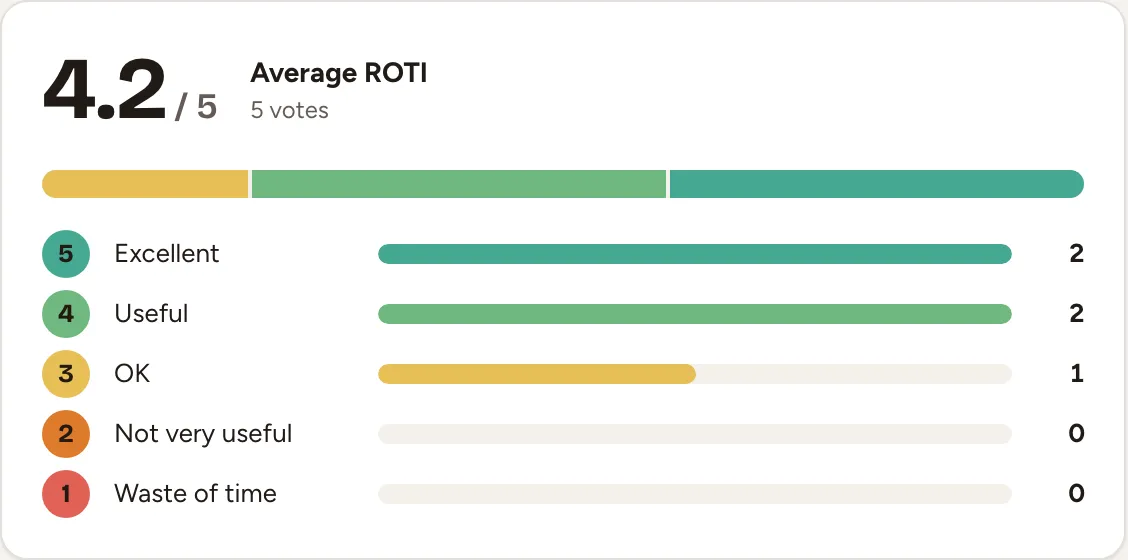
Revealing is optional. Ending the session shows the same result.
A health check or a poll inside the retro
A retro can carry the team’s health check, turned on with Health check when the retro is created, or added later by the facilitator with Add survey in the session settings.
- Open Health check, in the header of the board or in its menu when the window is narrow.
- Give each statement a score from 1 (strongly disagree) to 5 (strongly agree) and select Submit answers.
- As the facilitator, select Close the health check when enough people have answered. Everyone then sees the results. Reopen takes answers again; Remove takes the health check off the retro.
Completing the retro closes a health check that is still open. Its results are shown with the results of the retro, with their trend across the team’s retros; see also Health and eNPS trends. The statements themselves belong to the team, see Health check, pulse and eNPS.
Add survey also offers a Quick poll: one question, answered on the board, in a Surveys column. A retro holds up to 10 of them, and they can be added from Writing to Discussing.
Close the retro
As the facilitator, select End session in the bar at the bottom, or press Ctrl+→ (⌘+→ on a Mac). There is no confirmation.
Everyone still on the board sees it change to the results.
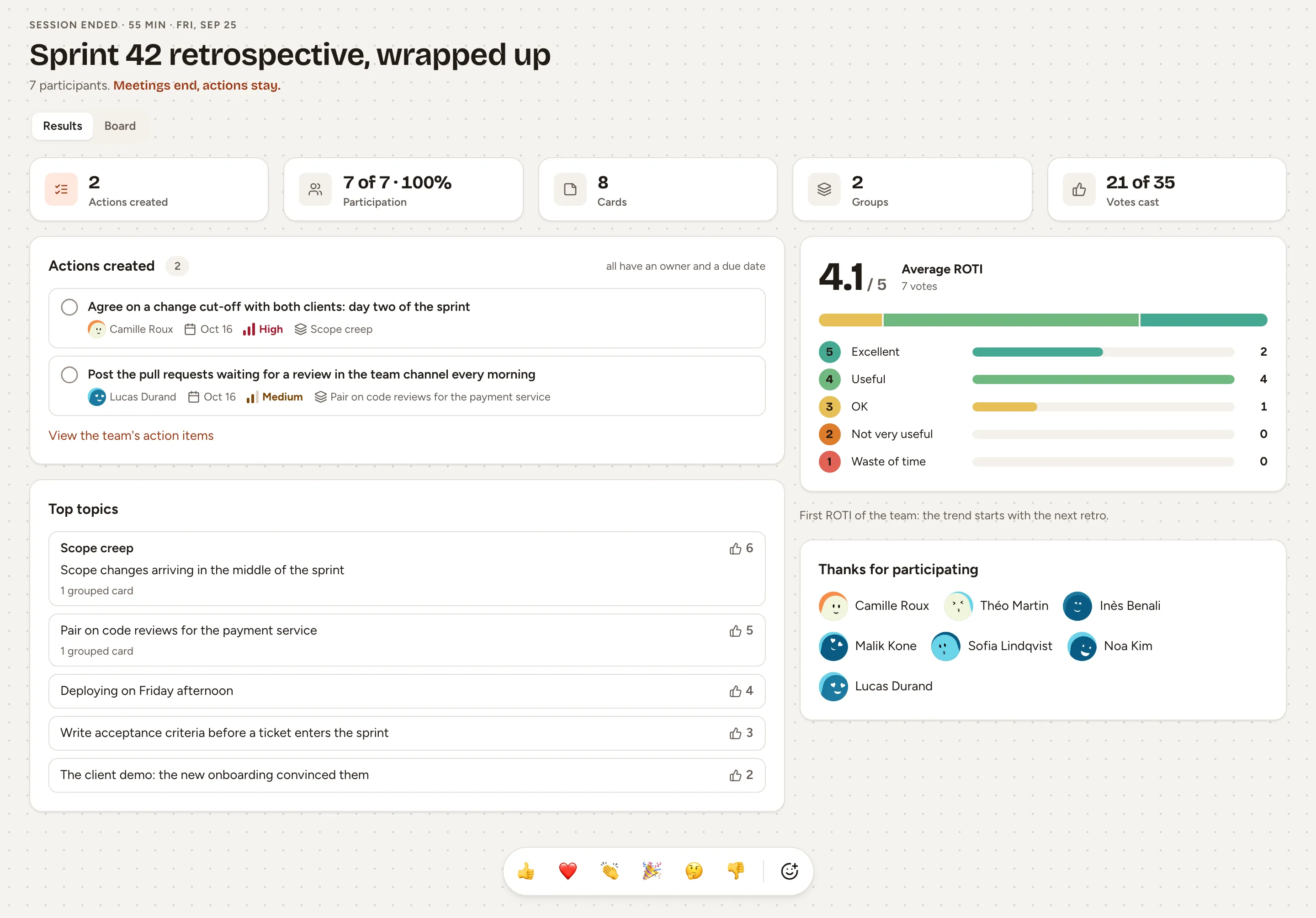
- The top line gives the duration of the session and its date.
- Results shows the action items created, the participation, the number of cards, groups and votes, the average ROTI, the top topics, and the people who took part.
- Board shows the columns as they were, read-only.
Anyone who opens the retro later, from the team’s Sessions page, sees the same thing. What the facilitator can do next, such as sending the results, is on Summary and sharing. Phases overview lists what a completed retro no longer allows and how to reopen it.
Draft a quick poll with AI
When an instance admin has configured an AI provider, the facilitator can draft a quick poll from the retrospective board. This is available from Writing through Discussing while the board is unlocked.
- Open the session settings, select Add survey, then Quick poll.
- Choose the answer type and describe what you want under Generate from a prompt, for example “Ask which part of this sprint caused the most delays”. The prompt accepts up to 300 characters.
- Select Generate. Skrüm fills the question, description and answer choices for you. A free-text question has no choices.
- Review and edit the fields, then create the poll. Generating a draft does not publish it or collect answers.
The request sends your prompt, the retro title and the answer type to the provider shown under the field, along with instructions in your interface language. It does not include the board’s cards, participant identities or existing answers. The Automatic AI summary setting does not control this request: it happens only when you select Generate.
If the provider is unavailable or returns an unusable draft, the form shows an error. You can retry or write the poll yourself. Without a configured provider, the regular poll editor remains available.