Workspaces and teams
Team settings
Rename a team, change its address, or delete it.
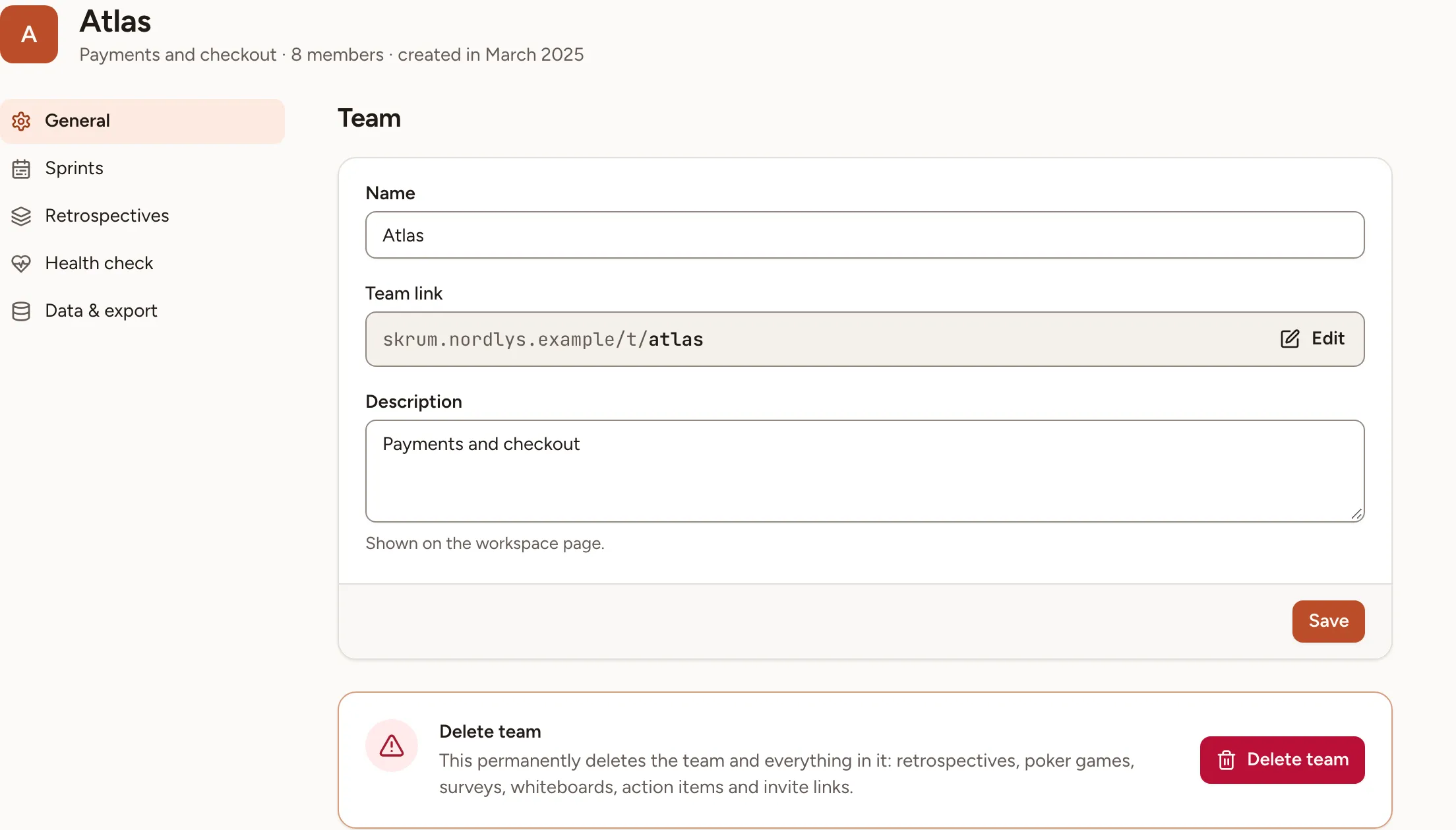
Rename a team, describe it, change its short address or delete it, and find the other sections of its settings. The General section is for team owners and for the workspace’s owners and admins.
Open the settings
In the sidebar, under Team, select Settings. The entry appears only when you may open at least one section.
| Section | What it holds | Who opens it |
|---|---|---|
| General | The name, the link, the description, and deleting the team | Team owner |
| Sprints | See Sprints | Team owner, facilitator |
| Retrospectives | See Rituals and retro settings | Team owner, facilitator |
| Health check | The statements of the team’s health check: see Health and eNPS trends | Team owner; a facilitator reads them without changing them |
| Integrations | See the Integrations overview. Listed only when the instance has at least one integration turned on | Team owner |
| Data & export | See Activity and data | Team owner |
A workspace owner or admin opens every section of every team.
Rename and describe the team
- Open Settings. General is the first section.
- Change the Name, 100 characters at most.
- Write a Description, 200 characters at most. It is shown on the workspace page, on the team’s tile.
- Select Save.
Renaming a team does not change its link.
Change the team link
The Team link is the short address of the team: the address of your instance, /t/, then a slug.
- Beside the link, select Edit.
- Type the new slug: 2 to 50 characters, lower-case letters, digits and hyphens.
- Select Save.
Two teams of one workspace cannot share a slug. Once the link is changed, the previous address no longer opens the team: tell the people who kept it.
Delete the team
Only a workspace owner or admin sees the Delete team card; a team owner who is neither does not.
- In General, select Delete team.
- Confirm with Delete team in the dialog.
Deleting a team is permanent. It deletes everything in it: retrospectives, planning poker games, surveys, whiteboards, action items and invite links.
Skrüm then returns to the workspace page. The people who were in the team stay in the workspace.