Accounts
Keyboard shortcuts
Every shortcut, the shortcuts dialog and the command palette.
Skrüm has 43 keyboard shortcuts in five groups. This page lists them all, shows where to look them up in the application, and how to use the command palette.
In the tables, Mod is ⌘ on macOS and Ctrl on Windows and Linux.
Open the shortcuts dialog
- Press
?anywhere outside a text field. - Or press Mod +
/, which also works while you type in a field. - Or open the menu on your name and select Keyboard shortcuts, or run Show keyboard shortcuts from the command palette.
On a whiteboard, ? typed on the canvas belongs to the canvas. In a planning poker game whose deck has a “?” card, ? plays that card. Use Mod + / there.
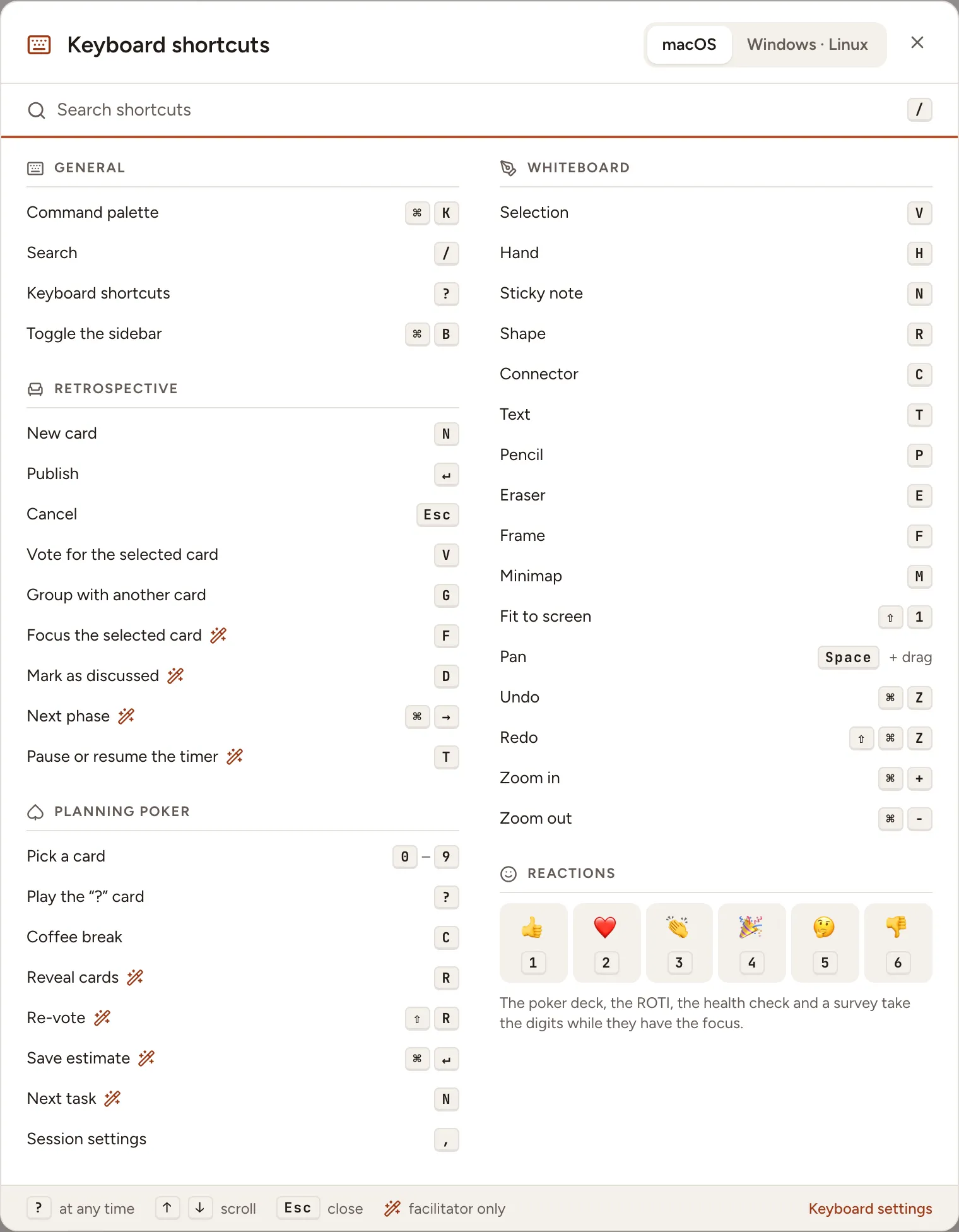
In the dialog:
- macOS and Windows · Linux switch the names of the keys. The dialog opens on the one that matches your device.
- Search shortcuts filters the list; press
/to reach it. - The group of the session you are in comes right after General.
- A wand marks a shortcut that works for the facilitator only.
- The list leaves out what the screen does not have: a session has no command palette, a guest has no sidebar, and the “?” and coffee cards are listed in a planning poker game only when its deck holds them.
General
| Shortcut | Keys |
|---|---|
| Command palette | Mod + K |
| Search | / |
| Keyboard shortcuts | ? |
| Toggle the sidebar | Mod + B |
Retrospective
| Shortcut | Keys | Who |
|---|---|---|
| New card | N |
Everyone |
| Publish | Enter |
Everyone |
| Cancel | Esc |
Everyone |
| Vote for the selected card | V |
Everyone |
| Group with another card | G |
Everyone |
| Focus the selected card | F |
Facilitator |
| Mark as discussed | D |
Facilitator |
| Next phase | Mod + → |
Facilitator |
| Pause or resume the timer | T |
Facilitator |
Planning poker
| Shortcut | Keys | Who |
|---|---|---|
| Pick a card | 0 to 9 |
Everyone |
| Play the “?” card | ? |
Everyone |
| Coffee break | C |
Everyone |
| Reveal cards | R |
Facilitator |
| Re-vote | Shift + R |
Facilitator |
| Save estimate | Mod + Enter |
Facilitator |
| Next task | N |
Facilitator |
| Session settings | , |
Everyone |
Whiteboard
| Shortcut | Keys |
|---|---|
| Selection | V |
| Hand | H |
| Sticky note | N |
| Shape | R |
| Connector | C |
| Text | T |
| Pencil | P |
| Eraser | E |
| Frame | F |
| Minimap | M |
| Fit to screen | Shift + 1 |
| Pan | Space + drag |
| Undo | Mod + Z |
| Redo | Shift + Mod + Z |
| Zoom in | Mod + + |
| Zoom out | Mod + − |
Reactions
| Reaction | Key |
|---|---|
| 👍 | 1 |
| ❤️ | 2 |
| 👏 | 3 |
| 🎉 | 4 |
| 🤔 | 5 |
| 👎 | 6 |
The poker deck, the ROTI, the health check and a survey take the digits while they have the focus.
Turn single-key shortcuts off
To turn off the shortcuts made of a single letter, digit or sign:
- Open Settings and go to Appearance. The Keyboard settings link at the bottom of the shortcuts dialog leads there.
- Under Accessibility, switch Single-key shortcuts off.
- Select Save.
Shortcuts with Mod, Enter, Esc and the arrows keep working, and the dialog says “Single-key shortcuts are off. Shortcuts with ⌘ or Ctrl still work.” In a session, the dialog has the Single-key shortcuts switch itself, so that a guest can use it too.
Use the command palette
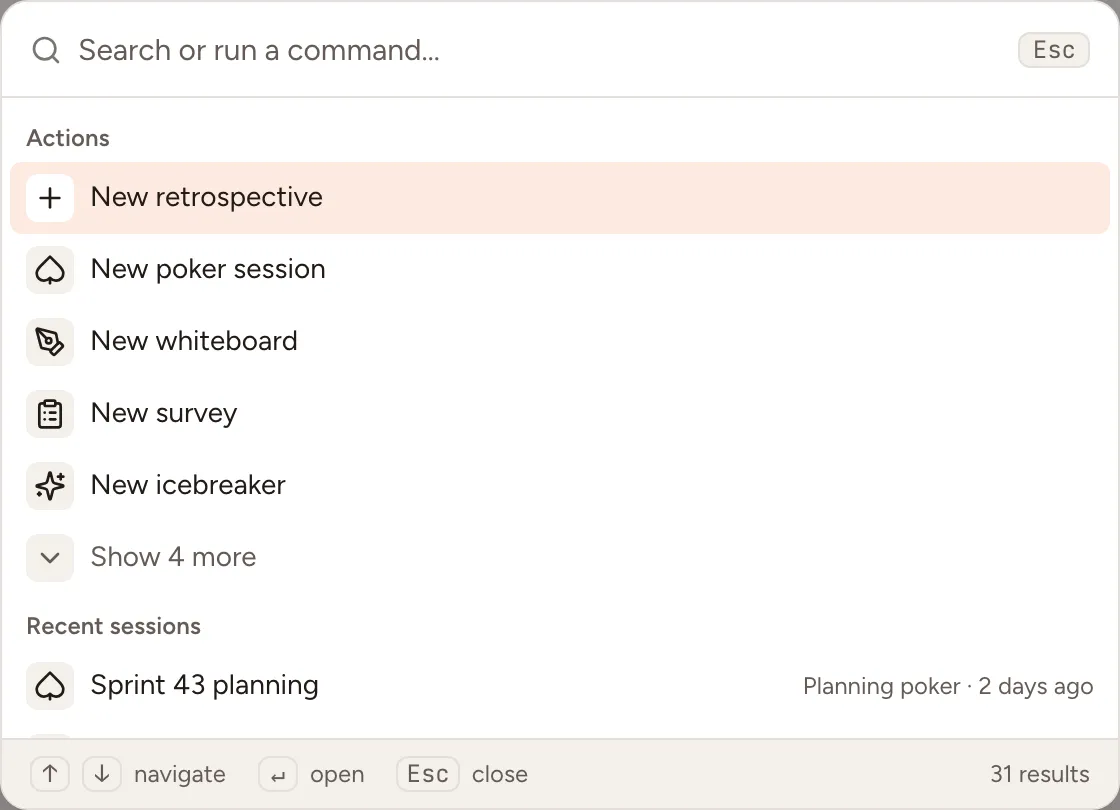
The command palette searches the workspace, runs a command and opens a page from one field.
- Select Search… in the top bar, or press Mod +
Kor/. - Type a few letters.
- Move with
↑and↓, open withEnter, close withEsc.
| Group | What it holds |
|---|---|
| Actions | New retrospective, New poker session, New whiteboard, New survey and New icebreaker when you are in a team and not an observer; Join a session with a code; Invite to … when you may manage the members of the workspace; Switch to dark theme or Switch to light theme; Show keyboard shortcuts |
| Recent sessions | The last sessions of your teams, the ones in progress first, marked Live |
| Results | From two characters typed: the retrospectives, planning poker games, whiteboards, games, surveys, action items and cards of the workspace that match |
| Go to | The pages of the sidebar, your other teams, and Profile, Security and Notification settings |
Some pages of Go to show two keys. Press G, then the second key, without opening the menu:
| Page | Keys |
|---|---|
| Home | G then H |
| Sessions | G then E |
| Action items | G then A |
| Insights | G then I |
| Members | G then M |
| Templates | G then T |
| Administration | G then S |
A page is listed, and its keys work, when you have that page.