Whiteboard
Export a whiteboard
Save a whiteboard as a PNG or SVG picture, or as a data file.
You can save a whiteboard as a picture, in PNG or SVG, or as a data file that holds everything on it. Everyone on the board can export it, guests included.
Open the export dialog
Select Export in the header of the board. In a window narrower than 1536 pixels the header has no room for that button: open the board menu (the Board menu button, marked …) and select Export there.
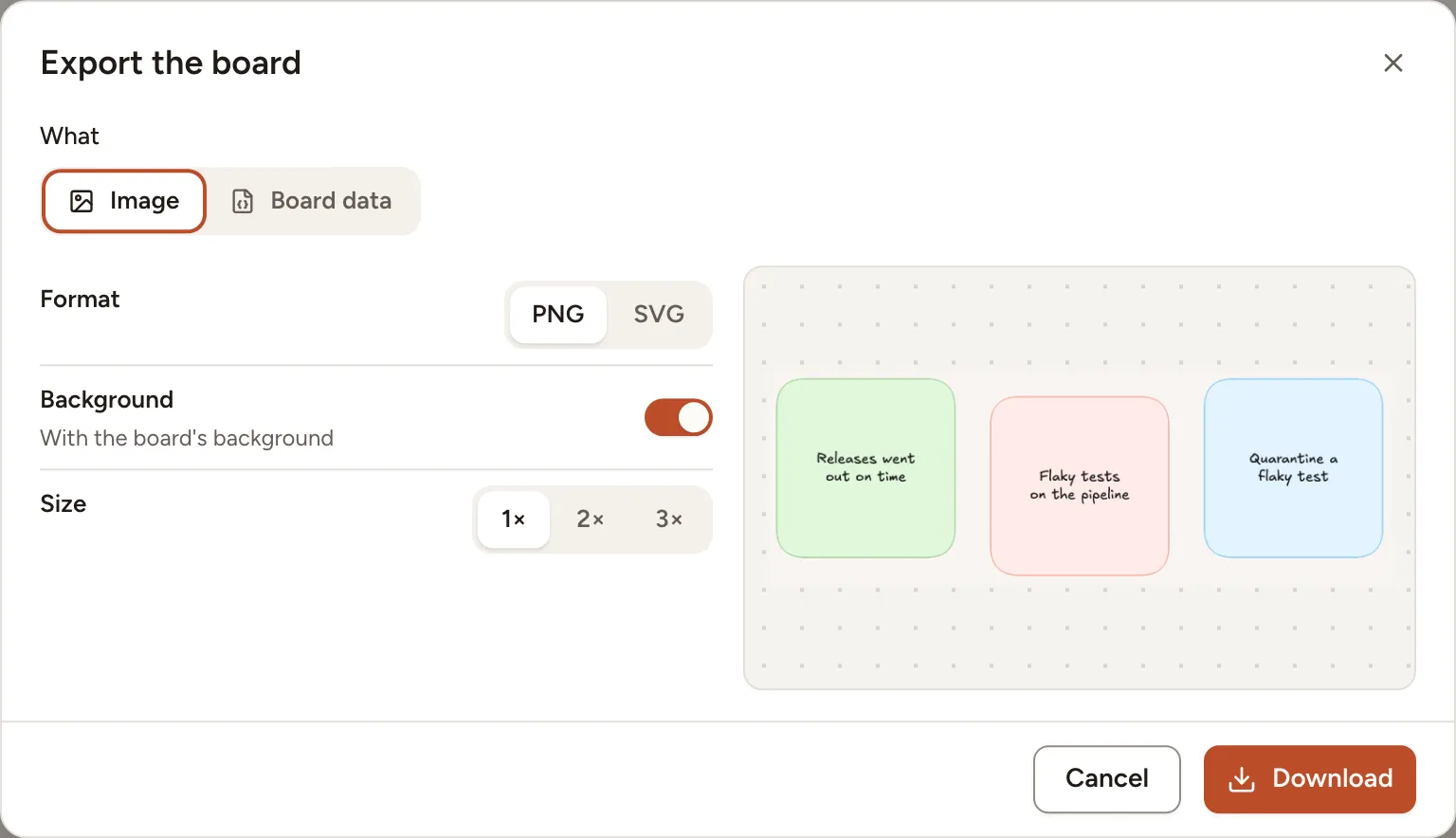
Save a picture
- Under What, keep Image.
- Choose the Format: PNG or SVG.
- Leave Background on to paint the picture with the board’s background colour, or turn it off for a see-through background.
- For a PNG, choose the Size: 1×, 2× or 3×. An SVG has no size to choose: it stays sharp at every size.
- Check the preview, then select Download.
The picture holds every element of the board, not only the part on your screen. The file is named after the board, for example Faster code review.png.
To export part of a board, select the elements first, then open the dialog and turn on Only the selection. That switch is only there when something is selected. A selected shape comes with its text, and a selected frame with what it holds.
On an empty board the preview reads “Nothing to draw yet.” and Download is off.
To copy the board to the clipboard as a PNG without opening the dialog, press Shift + Alt + C on the canvas.
Save the board data
- Under What, select Board data.
- Select Download.
You get a JSON file named after the board, ending in .whiteboard.json, with every element of the board and the images it holds.
Skrüm has no command that opens this file again. To start another board from this one, duplicate it or save it as a template.