Integrations
Integrations overview
What Skrüm connects to, who sets it up at the instance and at the team, and what each integration can do.
Skrüm connects a team to nine tools: four chat channels, four issue trackers and a webhook of your own. This page says who sets an integration up, what each one can do, and how Skrüm learns about changes made in a tracker.
Two levels: the instance, then the team
An integration is set up twice, by two different people.
| Level | Who | Where | What they do |
|---|---|---|---|
| Instance | An instance admin | Administration, then Integrations | Enter the app’s credentials (or turn the provider on), once for every team |
| Team | A workspace owner or admin, or the team’s owner | The team’s settings, then Integrations | Connect the team to its own channel, site or repository |
Facilitators, members and observers of a team cannot open its Integrations page.
At the instance
- Open Administration and select Integrations. Skrüm asks for your password first.
- Select Configure on a provider’s row, fill in the fields and select Save. Each provider’s page lists its fields.
- The row then reads Available with the number of teams connected. Its switch turns the provider off for every team; the teams’ connections are kept and come back when you turn it on again.
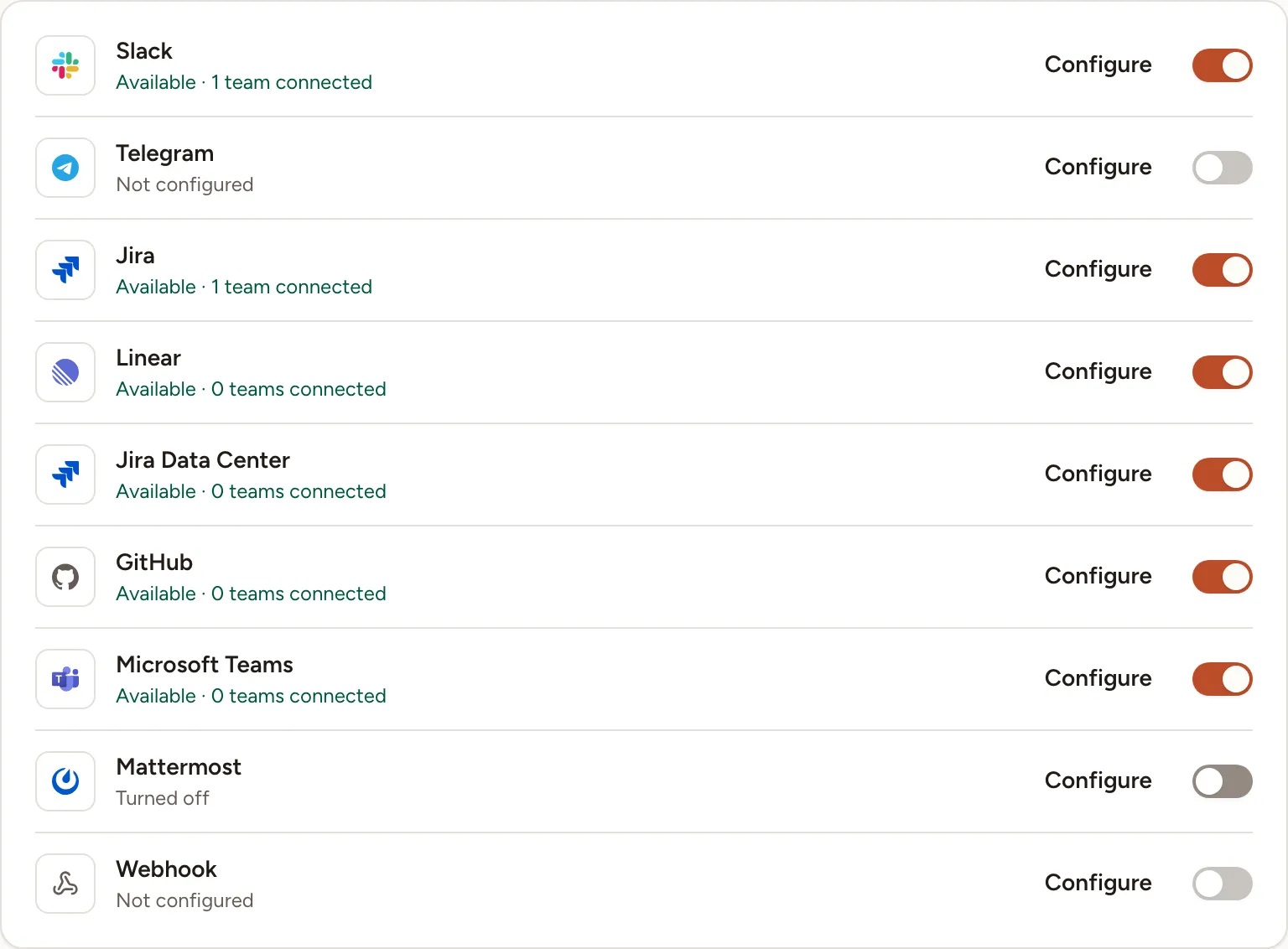
Every field can also be set by an environment variable. A value saved in the dialog wins over the environment; Use the environment value under a saved field returns to it. Saving needs a password confirmation less than five minutes old: when it has passed, the dialog shows Confirm your password to change these settings. with a Confirm button. Every change is recorded in the audit log.
Tokens and secrets are stored encrypted with the application key. See Configuration reference before you rotate it.
In a team
The Integrations entry of a team’s settings appears once at least one provider is configured and turned on. The page lists those providers only.
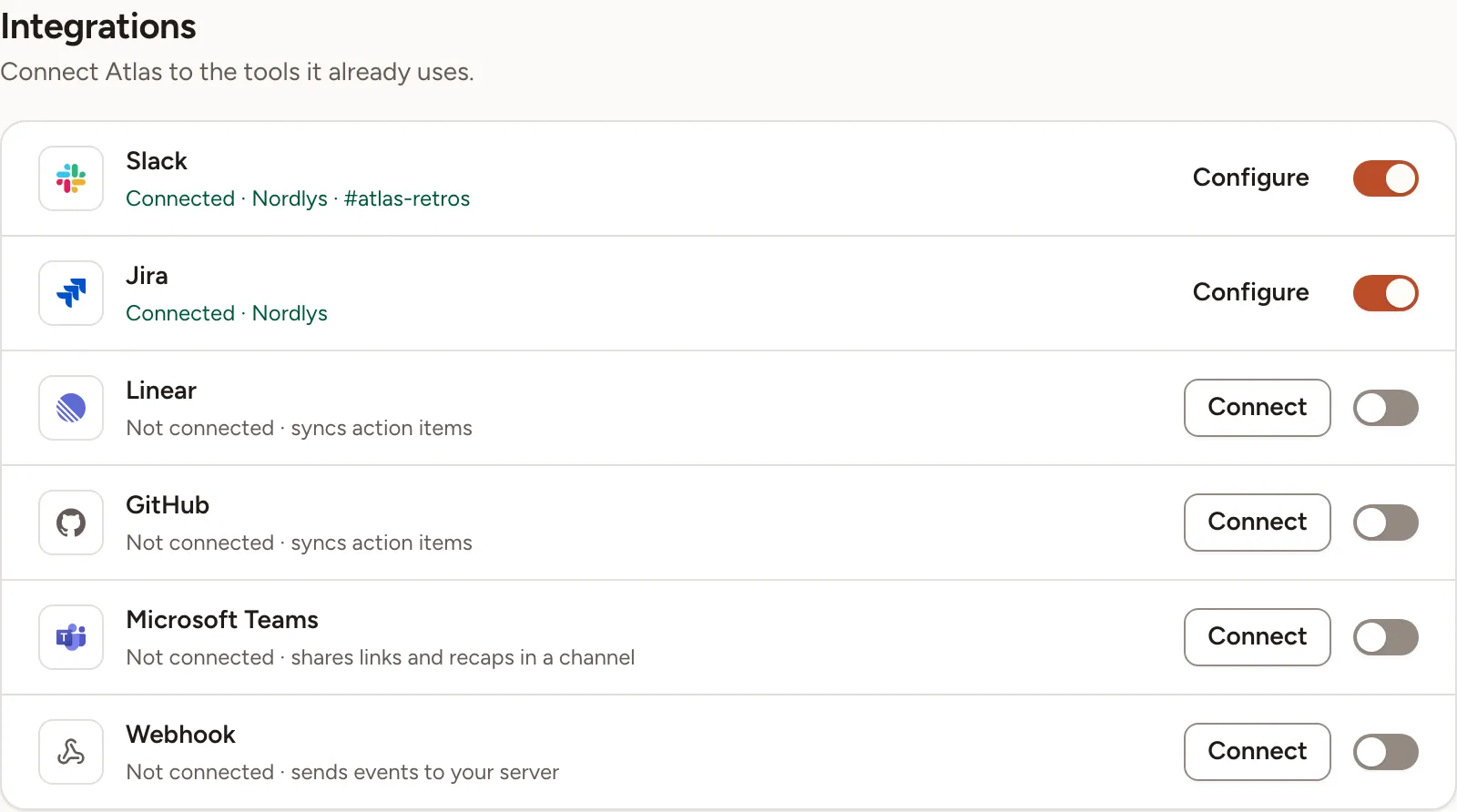
Each row has a status line, a button and a switch. The button opens the provider’s panel: Connect when nothing is connected, Configure when it works, Finish setup when a step is missing, Reconnect when the connection stopped working. Turning the switch off asks to disconnect. A team has one connection per provider.
What each integration can do
| Provider | Share links | Share results | Import into poker | Write estimates back | Export action items | Map people | Map priorities | Sync status | Send events |
|---|---|---|---|---|---|---|---|---|---|
| Slack | Yes | Yes | – | – | – | – | – | – | – |
| Telegram | Yes | Yes | – | – | – | – | – | – | – |
| Jira Cloud | – | – | Yes | Yes | Yes | Yes | Yes | Yes | – |
| Linear | – | – | Yes | Yes | Yes | Yes | Yes | Yes | – |
| Jira Data Center | – | – | Yes | Yes | Yes | Yes | Yes | Yes | – |
| GitHub | – | – | Yes | Yes | Yes | Yes | Yes | Yes | – |
| Microsoft Teams | Yes | Yes | – | – | – | – | – | – | – |
| Mattermost | Yes | Yes | – | – | – | – | – | – | – |
| Webhook | Yes | Yes | – | – | – | – | – | – | Yes |
- Share links posts the link of a retrospective, a planning poker game or a game room. Share results posts the recap of a retrospective. See Summary and sharing.
- Import into poker and Write estimates back are described in Tasks and imports.
- Export action items, the people and priority mappings, and the status sync are described in Export and tracker sync.
- Send events is the webhook sending by itself when something happens. See Webhook events.
A tracker connected read only can import issues and receive status updates for imported tasks when sync is on. Changes in Skrüm cannot be written back to the tracker: writing estimates, exporting action items and the two mappings need read and write.
Live updates or polling
With the status sync turned on, Skrüm has to learn that an issue changed in the tracker. It does so in one of two ways.
- Live updates (webhooks): the tracker calls Skrüm when an issue changes.
- Polling: Skrüm asks the tracker every few minutes. The connection’s panel then reads Checking every 5 minutes.
Two environment variables decide.
| Variable | Values | Effect |
|---|---|---|
INTEGRATIONS_INBOUND_WEBHOOKS |
auto (default), on, off |
With auto, Skrüm accepts trackers’ webhooks only when APP_URL is a public HTTPS address: not localhost, not an IP address, not a name ending in .local, .localhost, .test, .internal, .lan or .home.arpa, and resolving to a public address. on always accepts them, off never does |
INTEGRATIONS_POLL_MINUTES |
1 to 60, default 5 |
How often Skrüm polls a connection that gets no live updates |
On a private network, with auto, nothing is lost: every tracker falls back to polling. If your tracker can reach Skrüm on that network, as a Jira Data Center server often can, set INTEGRATIONS_INBOUND_WEBHOOKS=on.
A connection with live updates is still read once an hour. When changes keep being found that way and no webhook arrived for 24 hours, the panel reads Webhooks aren’t reaching skrum; checking every 5 minutes. and Skrüm polls until one arrives.
The chat channels and the webhook only send; they need nothing from outside. Telegram is the exception: Skrüm asks Telegram for new messages every minute to read the connect command.
Polling, the Telegram check and a daily check that every connection still has access all run from the scheduler. See Processes and status.