Whiteboard
Whiteboard basics
Open a whiteboard, move around it and work on it together.
A whiteboard is a shared canvas that belongs to a team. This page shows how to create one, move around it, and work on it with other people. The members of the team and the owners and admins of its workspace can open its whiteboards. An observer of the team can look at a board but cannot draw on it.
Create a whiteboard
Observers of the team cannot create a whiteboard.
- On the team’s page, select New session, then Whiteboard. A team that has no session yet also shows a New whiteboard tile, which opens the same dialog.
- Type a Name.
- Under Template, keep Blank or pick one of the templates.
- To let people in without an account, turn on Allow guests without an account.
- Select Create & open.
The board opens and you are its facilitator. A whiteboard is never closed: it stays in the team’s Sessions list, under Whiteboard, until someone deletes it.
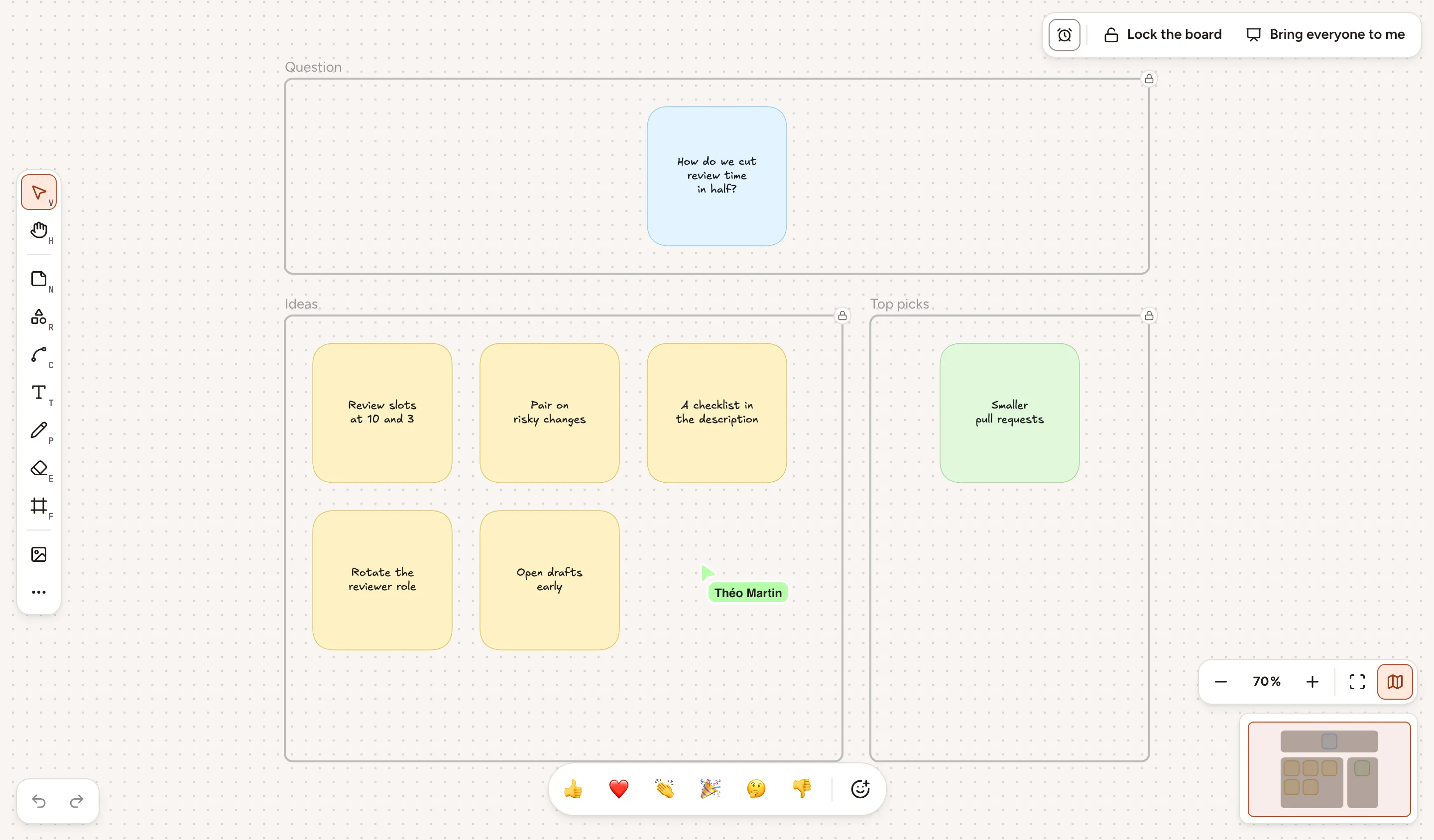
Move and zoom
- To move the view, select the Hand tool (
H) and drag, or holdSpaceand drag. - In the bar at the bottom right, Zoom out and Zoom in change the zoom by 10 % at a time, between 10 % and 3000 %. Select the percentage to go back to 100 %.
- Fit to screen (
Shift+1) shows everything that is on the board. - Minimap (
M) shows or hides a small map of the whole board. The frame on the map is the part you see: click or drag on the map to move there. The minimap is available in a window at least 1024 pixels wide.
See who is here
The header shows the avatars of the people who are on the board, and how many they are. Their pointers move on your canvas, each with its owner’s name.

To stop showing your pointer to the others, open the board menu (the Board menu button, marked …) and select Hide my cursor.
The bar at the bottom of the canvas sends a reaction, which flies across everyone’s screen with your name.
Facilitate
Whoever creates a board is its facilitator. Only the facilitator has the bar at the top right of the canvas:
- Timer starts a countdown of 1, 3, 5 or 10 minutes that everyone sees. While it runs, +2 min adds two minutes and Stop timer ends it.
- Lock the board stops everyone else from changing the board. They read “This board is locked.” and can still move and zoom.
- Bring everyone to me makes the view of the others follow yours. Someone who moves or zooms on their own stops following, and gets a Resume button to follow again.
The facilitator also renames the board, by selecting its name in the header, and finds these entries in the board menu: Hand over facilitation, to a member of the team who takes part or to an owner or admin of the workspace, and the switches Show live cursors and Show flying reactions, which apply to everyone.
When the facilitator is away, anyone on the board who is neither a guest nor an observer can select Take control in the board menu.
Read on a phone
On a screen narrower than 768 pixels, a board opens in read mode, marked Reading: you look at the board without changing it. Select Edit to draw, and Read to go back.
Invite people
Members of the team do not need an invitation: they open the board from the team’s page. For anyone else:
- Select Share in the header.
- Copy the guest link, show the QR code, or give the Session code, which people type at the address written under it.
The link, the QR code and the code only work while Allow guests without an account is on. The facilitator changes that switch in the same dialog. A guest picks a nickname and joins without an account, as Join as a guest explains. A guest draws like a member, but cannot share or duplicate the board, save it as a template, or become its facilitator.
Turning guest access off ends the access of the guests who are on the board. Regenerate link does the same, and the old link, QR code and code stop working.
Duplicate or delete a board
In the board menu, Duplicate this board opens a copy that holds the same elements and images, with “(copy)” at the end of its name. You are the facilitator of the copy, and its guest access, lock and timer are off. Guests and observers cannot duplicate a board.
Delete this board is offered to the facilitator and to the owners and admins of the workspace. Everything on the board is removed for everyone.