Integrations
Jira Cloud
Create the Atlassian OAuth app, enter its credentials, and connect a team to its Jira site for imports, estimates, exports and status sync.
After this page, a team can import Jira issues into planning poker, write estimates back, export action items as issues and keep their status in step. An instance admin creates one Atlassian app; each team then connects its Jira site. For a Jira server you host yourself, see Jira Data Center.
What it does
| Access | What the team can do |
|---|---|
| Read only | Import issues into planning poker and receive status updates from Jira when sync is on |
| Read and write | Also write estimates to the story points field, export action items as issues with an assignee and a priority |
With read-and-write access, the team can turn on the two-way status sync: completing an action item moves its Jira issue to done, closing the issue completes the item, and imported poker tasks follow their issue.
With read-only access, imported tasks can still follow their Jira issue when status sync is on; Skrüm cannot write changes back to Jira.
Who can set it up
- The Atlassian app and its credentials: an instance admin, in Administration, then Integrations: see Integration apps.
- A team’s connection: a workspace owner or admin, or the team’s owner, on the team’s Integrations page. Skrüm acts in Jira as the Atlassian account of that person.
Before you start
- The callback address is opened by the browser of the person who connects. The server running Skrüm must reach
auth.atlassian.comandapi.atlassian.com. - Live status updates need Jira to call your instance, so
APP_URLmust be a public HTTPS address. On a private network the status sync still works: Skrüm asks Jira everyINTEGRATIONS_POLL_MINUTESminutes, 5 by default. See Integrations overview.
On the vendor’s side
-
In the Atlassian developer console, create an OAuth 2.0 integration.
-
Under Authorization, select Configure next to OAuth 2.0 (3LO) and enter this callback URL, with your own address in place of
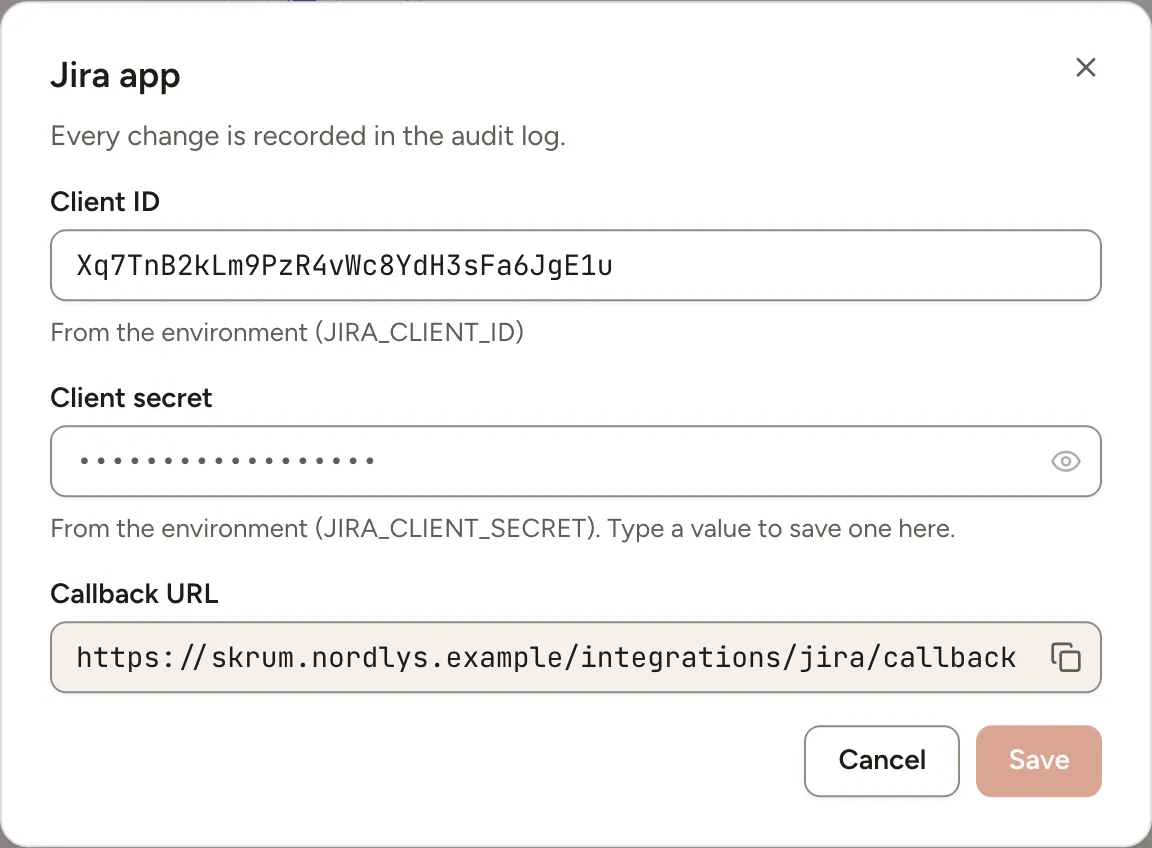
{APP_URL}:{APP_URL}/integrations/jira/callbackSkrüm shows the exact value as Callback URL in the dialog of the next section.
-
Under Permissions, add the scopes Skrüm asks for. A read-only connection asks for these six:
offline_access
read:jira-work
read:board-scope:jira-software
read:project:jira
read:sprint:jira-software
manage:jira-webhook
Listing boards requires both
read:board-scope:jira-softwareandread:project:jira. After adding a scope to an existing Atlassian app, select Reconnect in Skrüm and allow the updated permissions.A read-and-write connection asks for three more:
write:jira-work read:jira-user manage:jira-configurationmanage:jira-configurationis required by Jira’s Search priorities endpoint, which Skrüm uses to populate priority mappings. Add it to the Atlassian app and reconnect existing read-and-write connections to grant it. Skrüm does not create or change Jira’s priorities. -
Under Settings, copy the Client ID and the Secret.
-
If people outside your own Atlassian account will connect, turn sharing on under Distribution.
Atlassian describes each step in OAuth 2.0 (3LO) apps.
You add no webhook by hand. When a team turns the status sync on, Skrüm registers its own webhooks through Jira’s API, for the events jira:issue_updated and jira:issue_deleted on the projects of the linked issues, at this address:
{APP_URL}/integrations/webhooks/jira/{integration}/{token}Jira lets such webhooks live 30 days; Skrüm extends them before they expire. Atlassian describes them in Webhooks.
In Skrüm, Administration
Open Administration, select Integrations, then Configure on the Jira row.
| Field | Environment variable |
|---|---|
| Client ID | JIRA_CLIENT_ID |
| Client secret | JIRA_CLIENT_SECRET |
Select Save. A value saved here wins over the environment variable.
In the team’s Integrations page
- Open the team’s settings and select Integrations.
- Select Connect on the Jira row, then Connect (read only) or Connect (read and write).
- Allow the app on Atlassian’s page.
- If your Atlassian account reaches several Jira sites, the row reads Setup required: select Finish setup and choose the site under Choose the Jira site this team uses:.
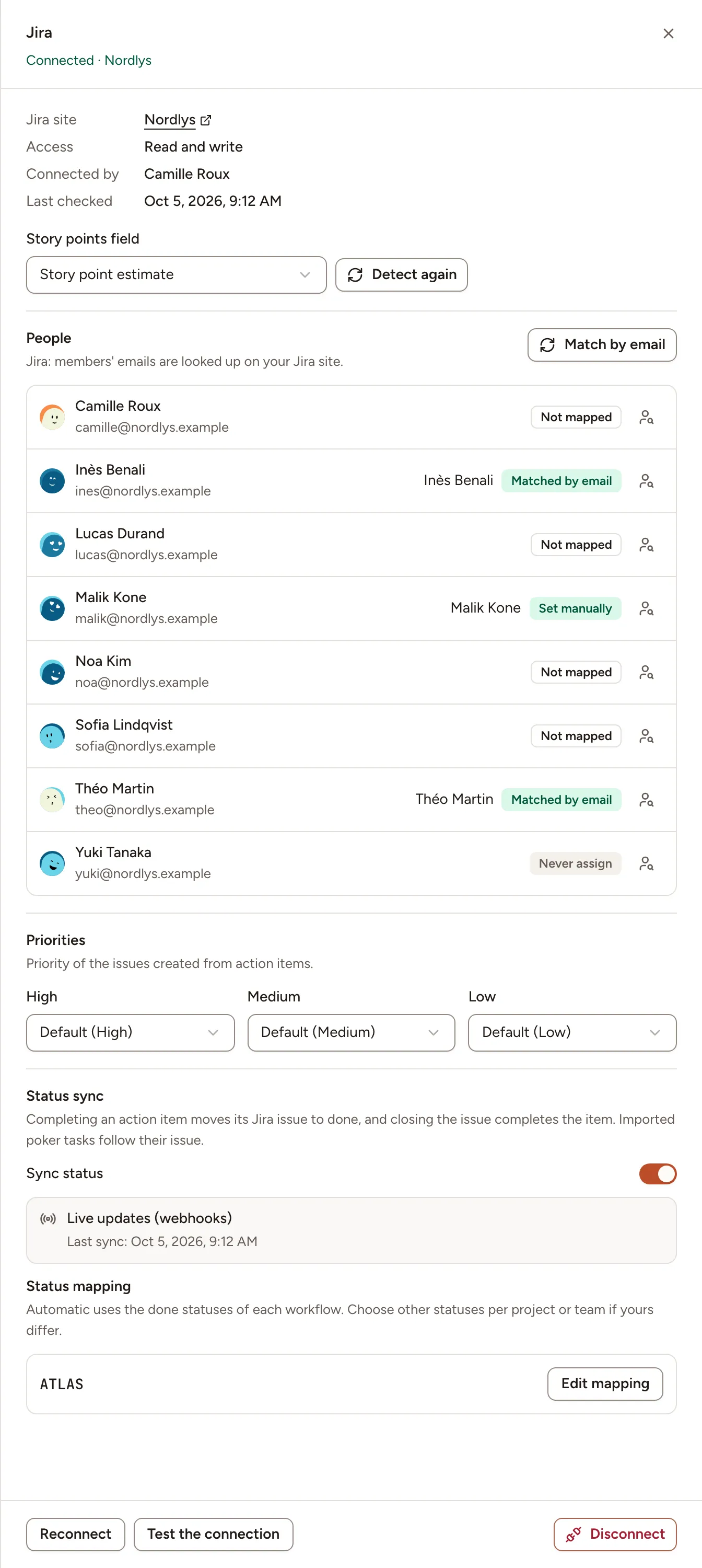
The panel then offers these settings.
| Setting | What it does |
|---|---|
| Story points field | The Jira field estimates are read from and written to. Skrüm detects it; choose another number field if it picked the wrong one, or select Detect again after changing your Jira fields |
| People | Which Jira account each member is, for the assignee of exported issues. Match by email looks every member up on your Jira site. For one person, choose an account, Never assign, or Reset |
| Priorities | The Jira priority given to an exported issue for each of High, Medium and Low: the default, a priority of your site, or Don’t set |
| Sync status | Turns the status sync on, after a confirmation: the first sync takes the state of every linked issue, then the most recent change wins |
| Status mapping | Per project, which statuses count as done and which status an issue moves to when its item is started, completed or reopened. Automatic uses the done statuses of each workflow. A project appears once an action item was exported to it or a task imported from it |
People and Priorities appear with read and write access only. Upgrade to read and write asks Atlassian for the three extra scopes.
To write story points, the connection also needs write:jira-work and the connected account must be allowed to edit the issue. Skrüm checks the issue’s edit metadata before writing: the selected numeric field must be editable for that project and issue type. See Get edit issue metadata.
Test it
Open the panel and select Test the connection. Skrüm checks that the site is still listed among the Jira sites accessible with the stored token and shows The connection works. This check does not test board, sprint or issue permissions; also try an import to verify those scopes.
Troubleshooting
| What you see | What to do |
|---|---|
| Could not connect Jira. Try again. | The consent was cancelled, or the client ID, secret or callback URL do not match the Atlassian app |
| This Atlassian account has no Jira site. | Connect with an account that has access to the Jira site |
| Reconnect required | The access was revoked or expired, or the site is no longer accessible. Select Reconnect |
| Unauthorized; scope does not match | Check that the Atlassian app has all the scopes listed above, including read:project:jira for boards and manage:jira-configuration for priority mappings, then select Reconnect and allow the updated permissions |
| Reconnect Jira to receive live updates. | The connection was made without the manage:jira-webhook scope. Add it to the Atlassian app, then select Reconnect |
| Checking every 5 minutes. | The instance does not accept Jira’s calls, so Skrüm polls. Nothing to do: the sync works, with that delay |
| Webhooks aren’t reaching skrum; checking every 5 minutes. | Jira’s calls do not arrive. Check that APP_URL is reachable from the internet |
| No story points field found. | Skrüm lists custom numeric fields using read:jira-work. If the connection needs reconnecting, reconnect first, then select Detect again. Otherwise check that a numeric story points field exists and is visible to the connected account |
Disconnecting
Turn the row’s switch off, or select Disconnect in the panel, and confirm. Imported tasks and exported issues keep their links but are no longer synced, and the people and priority mappings are deleted. Skrüm asks Jira to remove the webhooks it registered.
Atlassian does not let Skrüm revoke its own access. The person who connected removes the app under Connected apps in their Atlassian account settings.