Workspaces and teams
Invitations and invite links
Invite people by email or share a link that lets them join the team.
Bring people into a team by email or with a link, and follow the invitations that wait. A team’s owners and facilitators invite to their team; a workspace’s owners and admins invite to the workspace and to any of its teams.
Invite people to a team by email
- In the sidebar, under Team, select Members, then Invite.
- Under Emails, type or paste the addresses, separated by a space, a comma or a semicolon. One invitation takes 20 addresses at most.
- Pick the Role they get in the team: Facilitator, Member or Observer.
- Under Message · optional, add a few words if you wish, 500 characters at most.
- Select Send 2 invitations (the button counts the addresses).
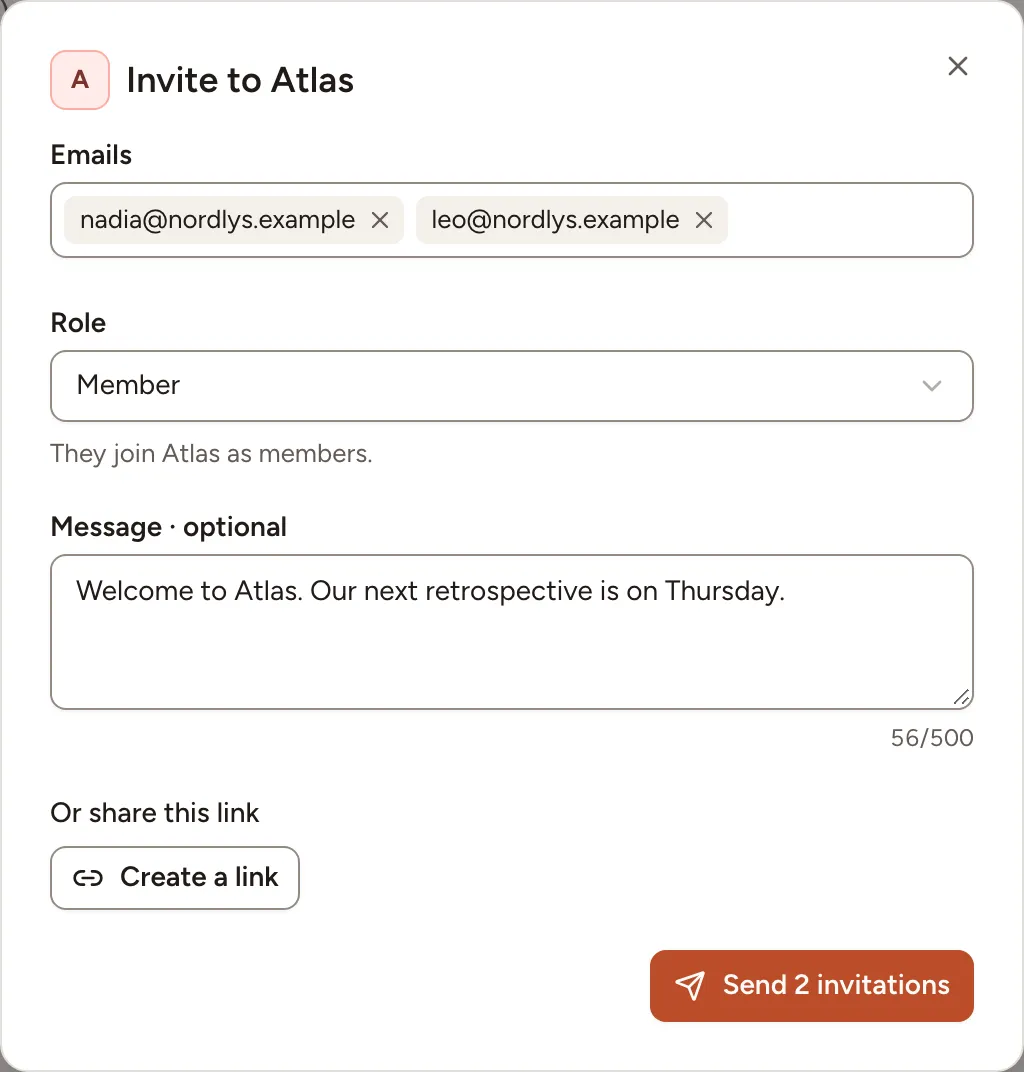
Each person receives an email with a link that works for 7 days. By accepting, they join the workspace as a member and the team with the role you picked. Nothing is sent when one of the addresses is already in the team: the dialog tells which.
When the instance sends no email, Skrüm shows the links once the invitations are created, so that you can pass them on yourself. See Mail.
Invite someone to the workspace
Workspace owners and admins only.
- Open the workspace’s Members page (see Workspaces) and select Invite.
- Fill in the Email address and the Role in the workspace, Member or Admin.
- To place the person in a team at once, pick it under Team · optional, then their Role in the team.
- Select Send invitation.
What the invited person sees
The link opens a page that says who invites them, to which team and workspace, with which role, and your message.
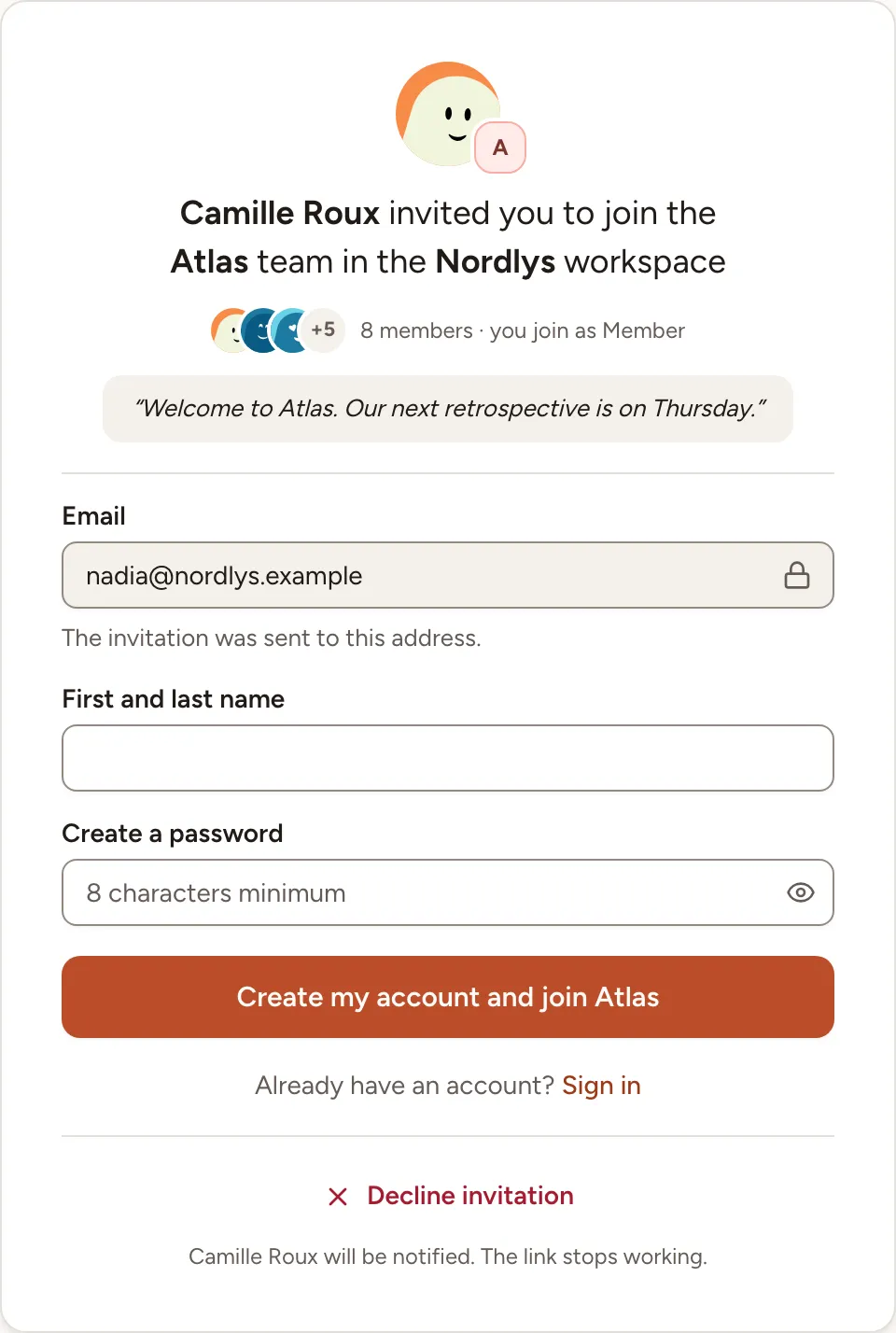
- Without an account, they type their First and last name, choose a password and select Create my account and join Atlas. The address is the one the invitation was sent to and cannot be changed. On an instance that signs people in with a company account only, the page shows those buttons instead.
- With an account at that address, they sign in and select Join Atlas. The invitation is also in their bell, with Accept and Decline.
- Signed in with another address, they are asked to log out and sign in with the invited one.
Decline invitation ends the link and tells the person who sent it.
Follow the invitations
The invitations that are not accepted yet are listed after the members, on the Members page of the team and of the workspace, as Invitation pending, Declined or Expired.
- Resend sends a new link, good for another 7 days. The previous link stops working.
- Revoke deletes the invitation; its link stops working. You can invite the person again later.
Share an invite link
A team has one invite link at a time. Anyone who has it can join the team as a Member; there is no limit to how many people use it.
- On the team’s Members page, select Invitation link.
- Select Create a link, then Copy.
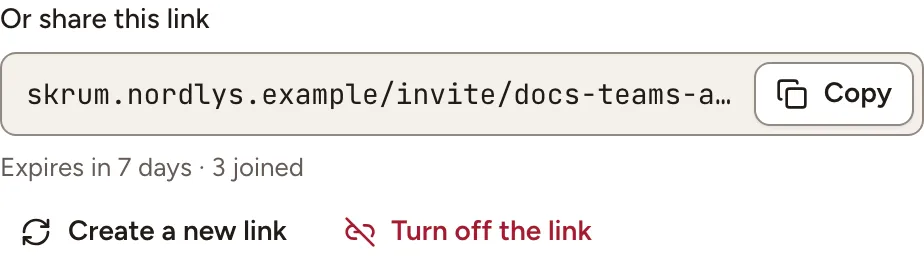
The link works for 7 days. Under it you read how long it has left and how many people joined through it.
- Create a new link replaces it: the current link stops working.
- Turn off the link ends it without a replacement.
The person who opens the link signs in or creates an account, confirms their email address if it is not confirmed yet, then selects Join Atlas. They also become a member of the workspace when they were not. On an instance where sign-up is by invitation, a working invite link is what lets a newcomer create an account; where sign-up is limited to some email domains, the link does not lift that limit. See Sign up and sign in.