Accounts
Account settings
Your profile, password, sessions, linked accounts, appearance, language and notifications.
This page goes through the settings of your own account. They apply in every workspace you belong to.
To open them, select your name at the bottom of the sidebar, then Settings. The settings are one page with up to five sections: Profile, Security, Appearance, Notifications and API tokens. The navigation of the page jumps to each.
Until the email address of your account is verified, the page shows Profile only.
Profile
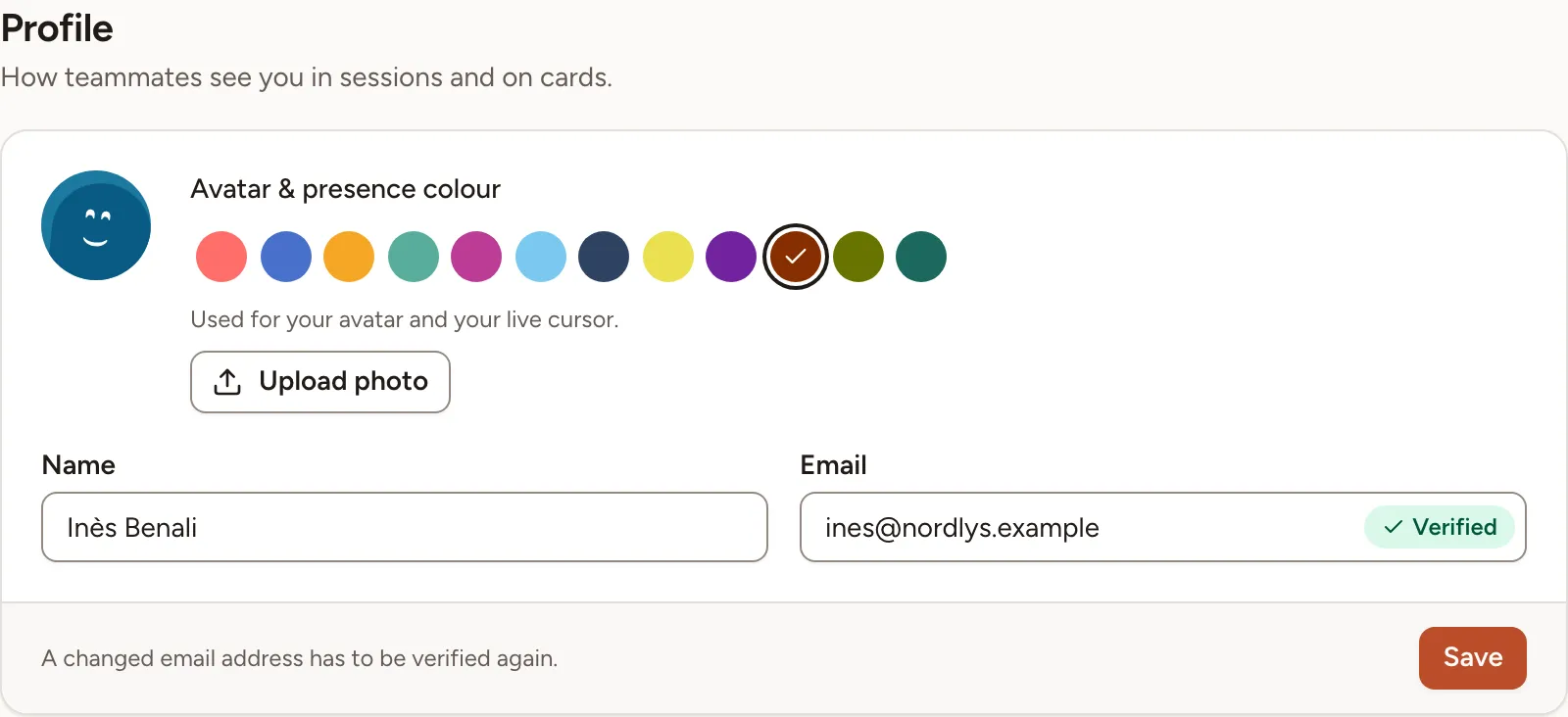
- Name is how teammates see you in sessions and on cards.
- Email is the address you sign in with. When you change it, Skrüm asks for your password, sends a verification link to the new address, and turns the email code off if you used it as a second factor.
- Avatar & presence colour offers twelve colours. The one you pick is used for your avatar and your live cursor.
- Upload photo takes a JPEG or PNG image and shows it as your avatar. The button is there when an instance admin allows profile photos.
Select Save to keep a new name, address or colour. A photo is saved as soon as you choose it.
The Avatar style card sets how your avatar is drawn when you have no photo. When an instance admin lets members choose, pick a style and select Save avatar style; Use the instance style goes back to the default. Otherwise the card says the style is set by the instance.
Password
Skrüm asks you to confirm your password before it shows or changes anything in Security.
- In the Password card, enter your Current password.
- Enter the New password and repeat it in Confirm new password. The card shows how strong it is and ticks each rule as you meet it.
- Select Update password.
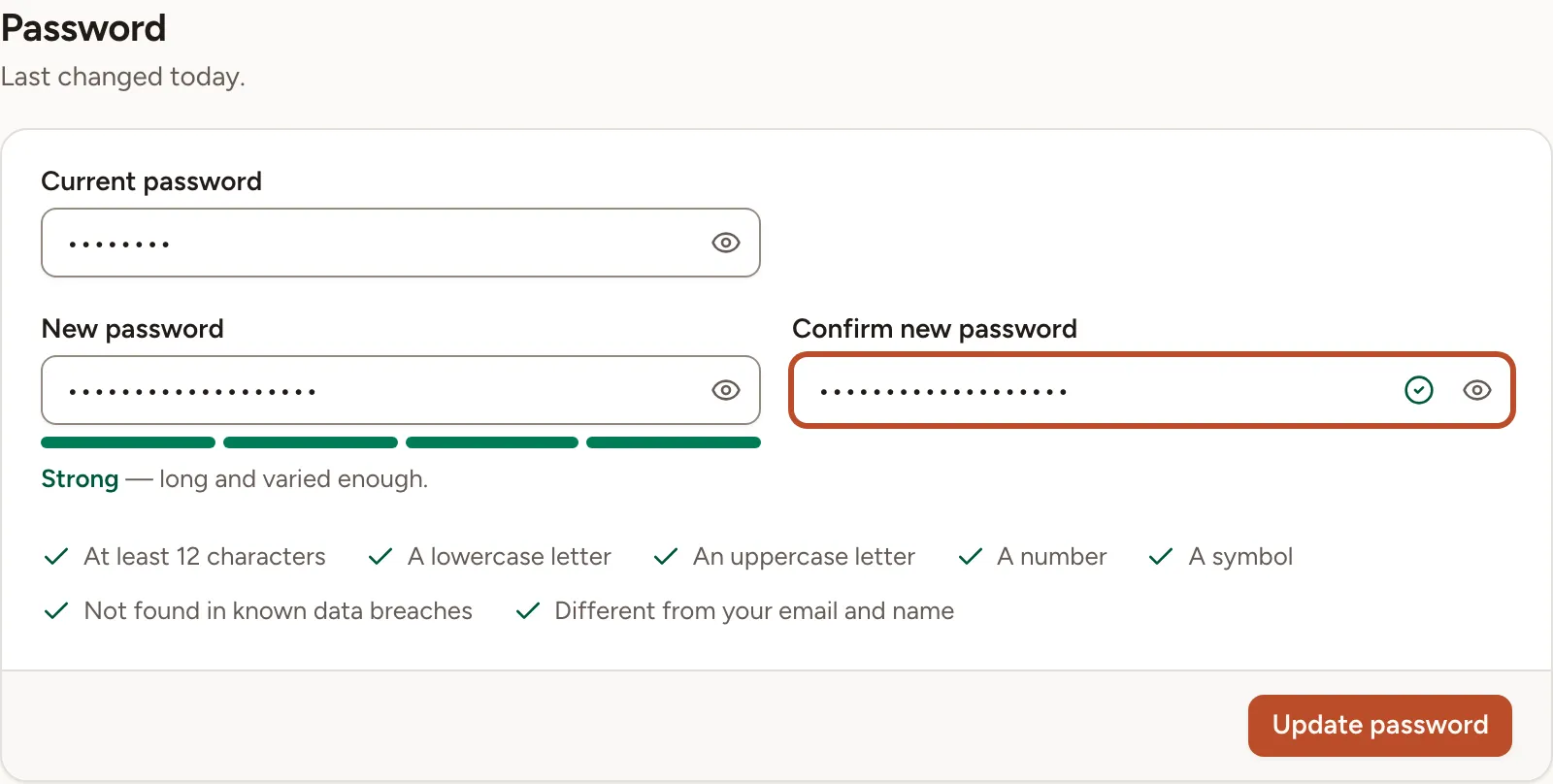
An account created with a company account has no password yet. The card is then titled Set a password and does not ask for a current one.
The two cards that follow, Two-factor authentication and Passkeys, are described in Two-factor and passkeys.
Active sessions
The Active sessions card lists the devices signed in to your account, each with its browser and system, its IP address and when it was last active. This device marks the one you are using.
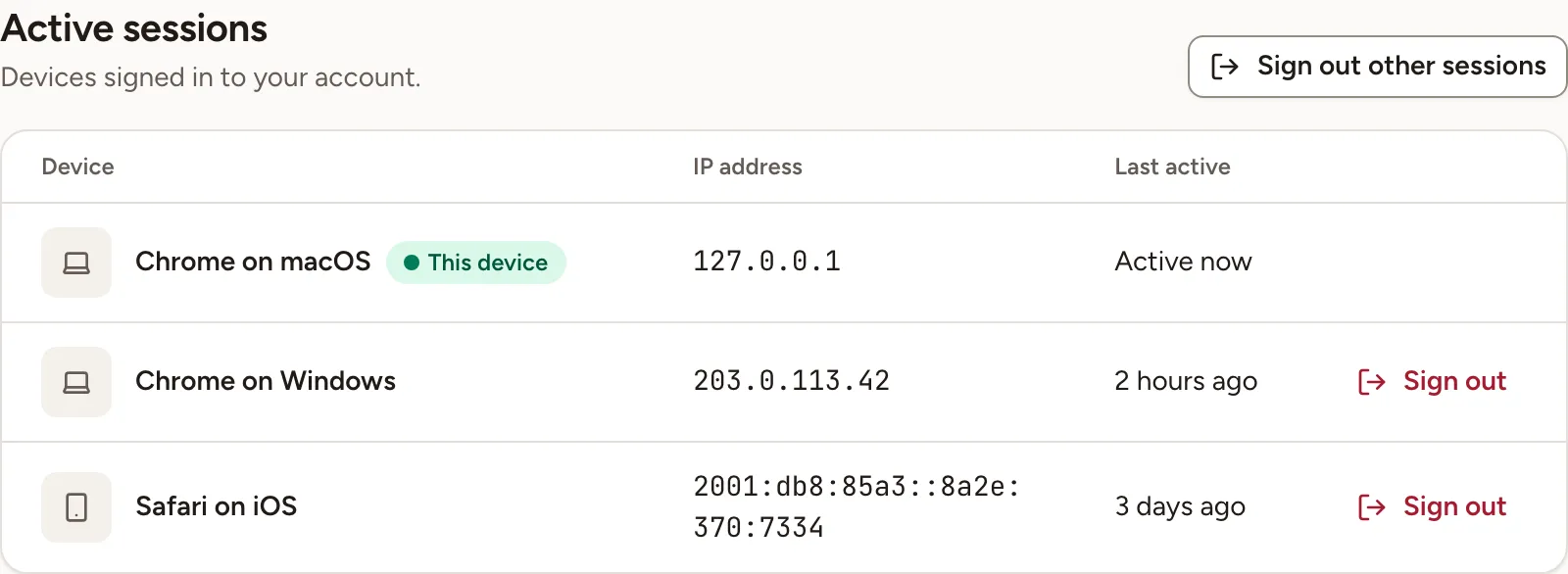
- Sign out on a row signs that device out.
- Sign out other sessions signs out every device but this one, and ends Remember me on every device.
The card is absent when the instance does not keep sessions in the database.
Linked accounts
The Linked accounts card lists the sign-in providers of the instance. It is there when an instance admin connected at least one.
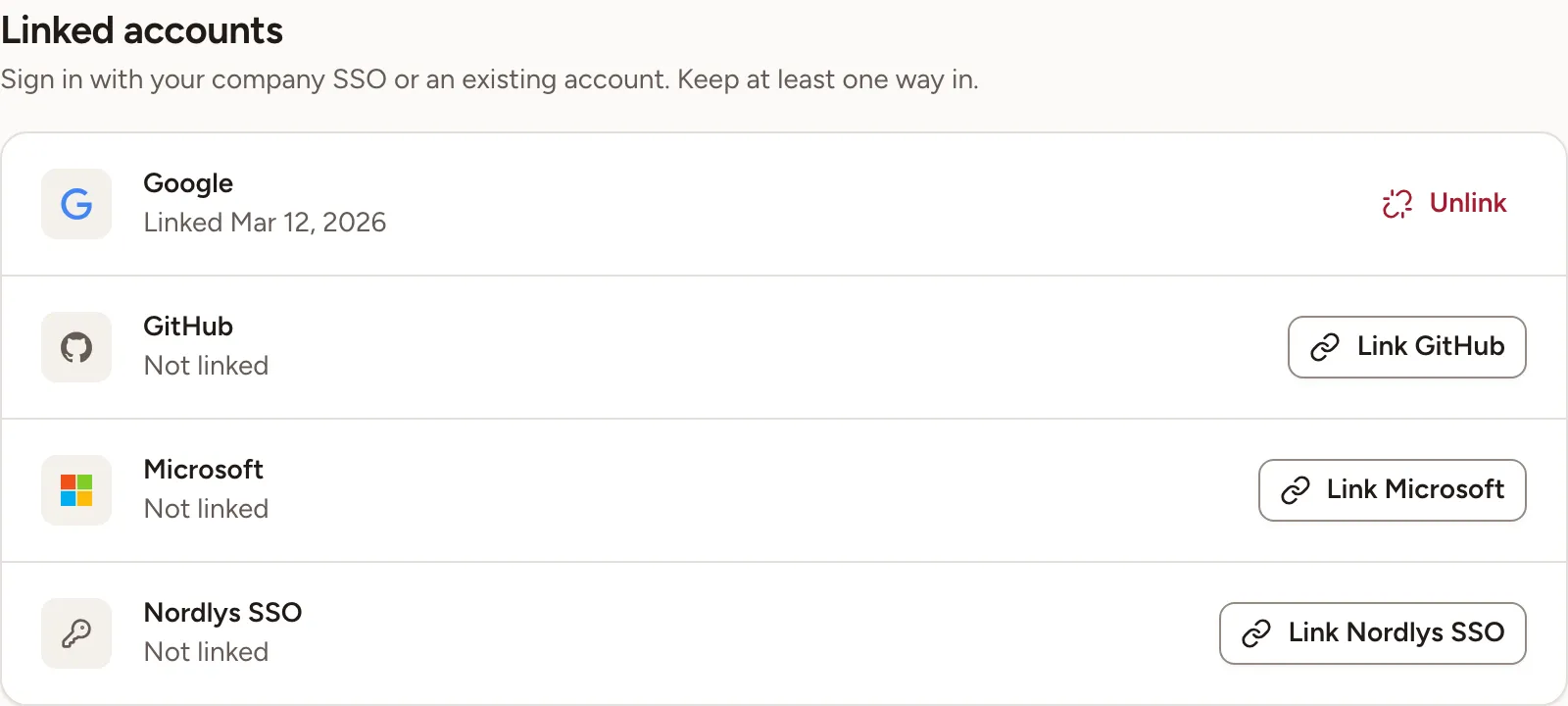
- Link … sends you to the provider, and brings you back with that account linked. You can then sign in with it.
- Unlink removes it. Skrüm refuses to unlink your last way to sign in: set a password or link another account first.
- Managed by your admin marks an account you cannot unlink.
Appearance
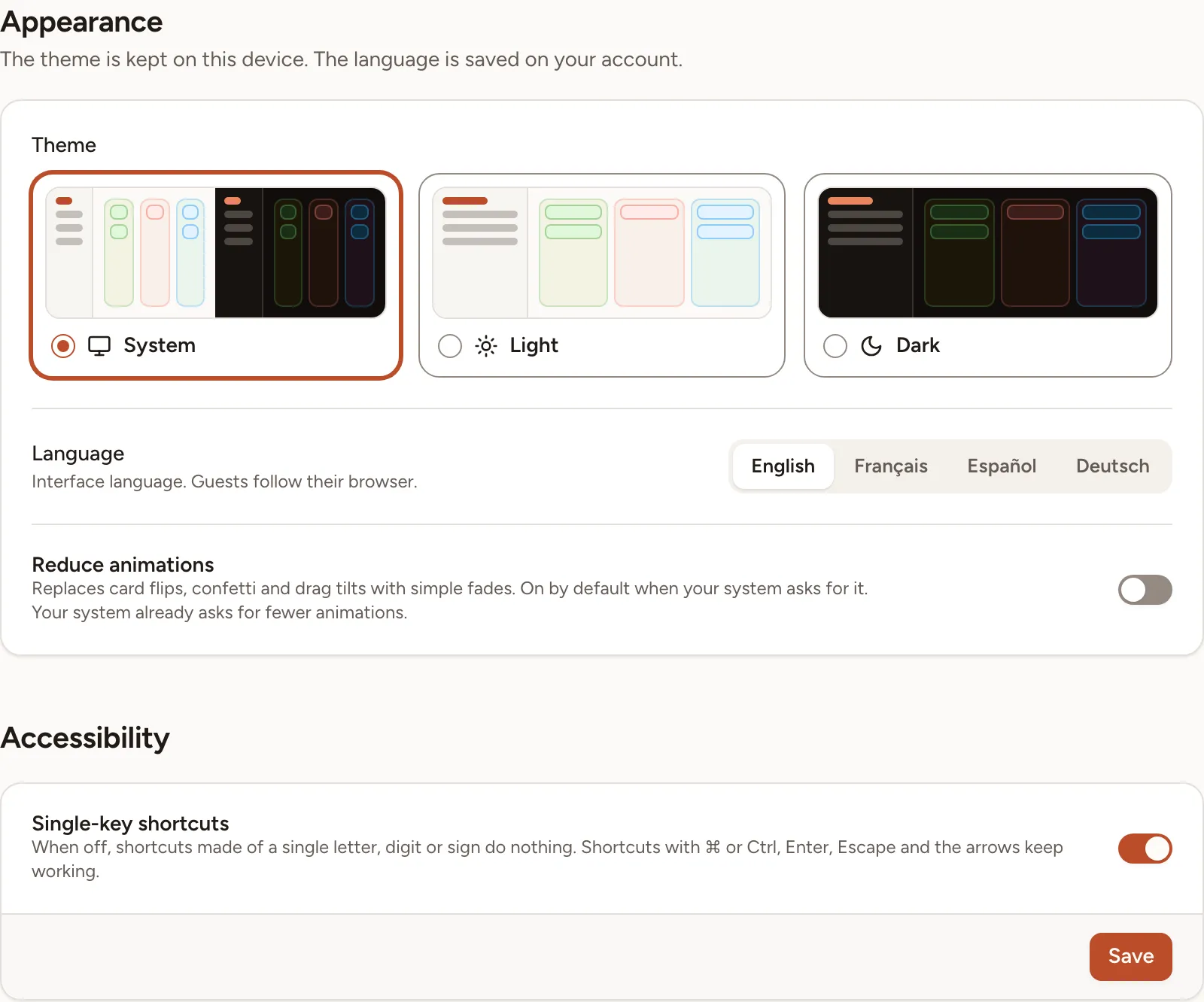
| Setting | What it does | Where it is kept |
|---|---|---|
| Theme | System follows your device; Light and Dark stay as chosen | On this device |
| Language | English, Français, Español or Deutsch, for the interface. Guests follow their browser | On your account |
| Reduce animations | Replaces card flips, confetti and drag tilts with fades. It is already in effect when your system asks for fewer animations | On your account |
| Single-key shortcuts | When off, shortcuts made of one letter, digit or sign do nothing. Select Save after changing it | On your account |
See Keyboard shortcuts for the shortcuts themselves.
Notifications
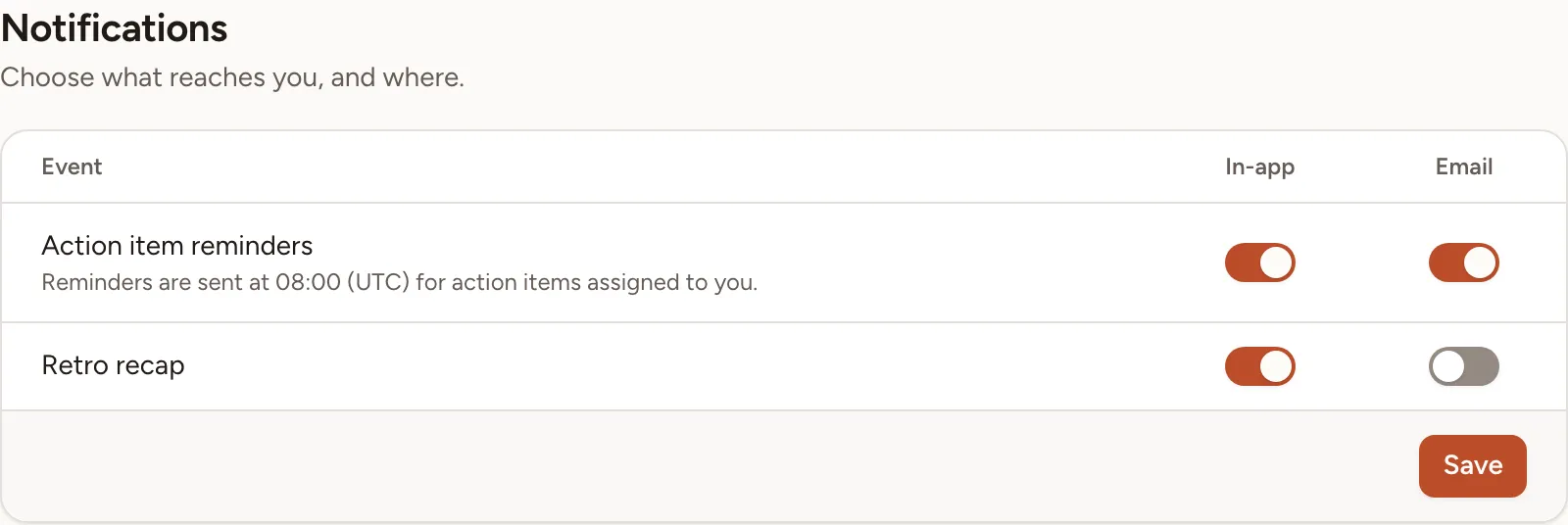
Each event has two switches: In-app for the notification bell, Email for your mailbox. Select Save after changing them.
| Event | What reaches you |
|---|---|
| Action item reminders | The action items assigned to you that are due or overdue. They are sent once a day at the time the card shows. See Reminders and recurrence. |
| Retro recap | The results of a completed retrospective, when someone sends them by email. See Summary and sharing. |
When reminders are turned off for the whole instance, the card says “Reminders are turned off on this instance.”
API tokens
The last section is there when the MCP server of the instance is on. See API tokens.
Delete your account
- At the end of Profile, select Delete account.
- Enter your Password and select Delete account again.
Your profile and your API tokens are deleted for good. Cards you wrote stay, shown as “Former member”. A workspace where you are the only member is deleted with you.
Skrüm refuses in two cases:
- You are the only owner of a workspace that has other members. Transfer its ownership first; see Workspaces.
- You are the only instance admin. Name another one first; see Users and admins.